 TritonPanels
The short answer
You do not need to edit the files. A good comic reader can clean up a scan as it displays it. In TritonPanels, open the reader menu and use:
- Image Filters for the scan itself: Reduce Noise, Sharpness, Remove Borders and Reduce Moire.
- Colour for the look of the page: warmth, saturation, sepia, invert brightness and tint.
- Background for the space around the page: Black, Match page or Immersive.
Each can be set for one comic or as the default for all of them. Nothing is written back to your files, so you can always go back to the original.
Why scans look rough on a screen
Most printed comics, especially older ones, were coloured with halftone screens: tiny dots of cyan, magenta, yellow and black that blend into flat colour at reading distance. A scanner records those dots, and when the image is shrunk to fit a phone, the dot pattern can clash with the screen’s pixels and produce a shimmering ripple called moiré. Add film grain or scanner speckle, soft line art from a low-resolution scan, wide white margins, and paper that has yellowed over decades, and you have the usual complaints.
One limit applies to every fix: a reader can only work with the detail the scan contains. Filters make a rough scan easier on the eye, but they cannot restore line art that a low-resolution scan never captured. Public-domain comics are often scanned more than once, so if one copy is poor, a better scan of the same issue may exist; see free and legal comics to read.
Each of those has a different fix, which is why there is no single “enhance” switch. Start with the filter that matches what bothers you, and add others only if they help.
Image filters
Open the reader menu and choose Image Filters. Each filter is a switch, and you can combine them.
| Filter | What it does | Try it when |
|---|---|---|
| Reduce Noise | Smooths film grain and scanner speckle | Flat colours look gritty or speckled |
| Sharpness | Crisps up soft line art and lettering | A low-resolution scan looks blurry |
| Remove Borders | Crops the blank margin around a scanned page | The art is small inside wide white or grey edges |
| Reduce Moire | Softens the interference pattern on screened colour | Colour areas ripple or show a pattern of dots |
A sensible order: Remove Borders first, since a bigger page needs less of everything else; then Reduce Moire or Reduce Noise for the colour; then Sharpness, and only if the lines still look soft. Sharpening a noisy scan sharpens the noise as well, so it is rarely the first thing to reach for.
Filters apply in Single Page view. Switch to it to see them.
Colour: warmth, saturation, sepia and tint
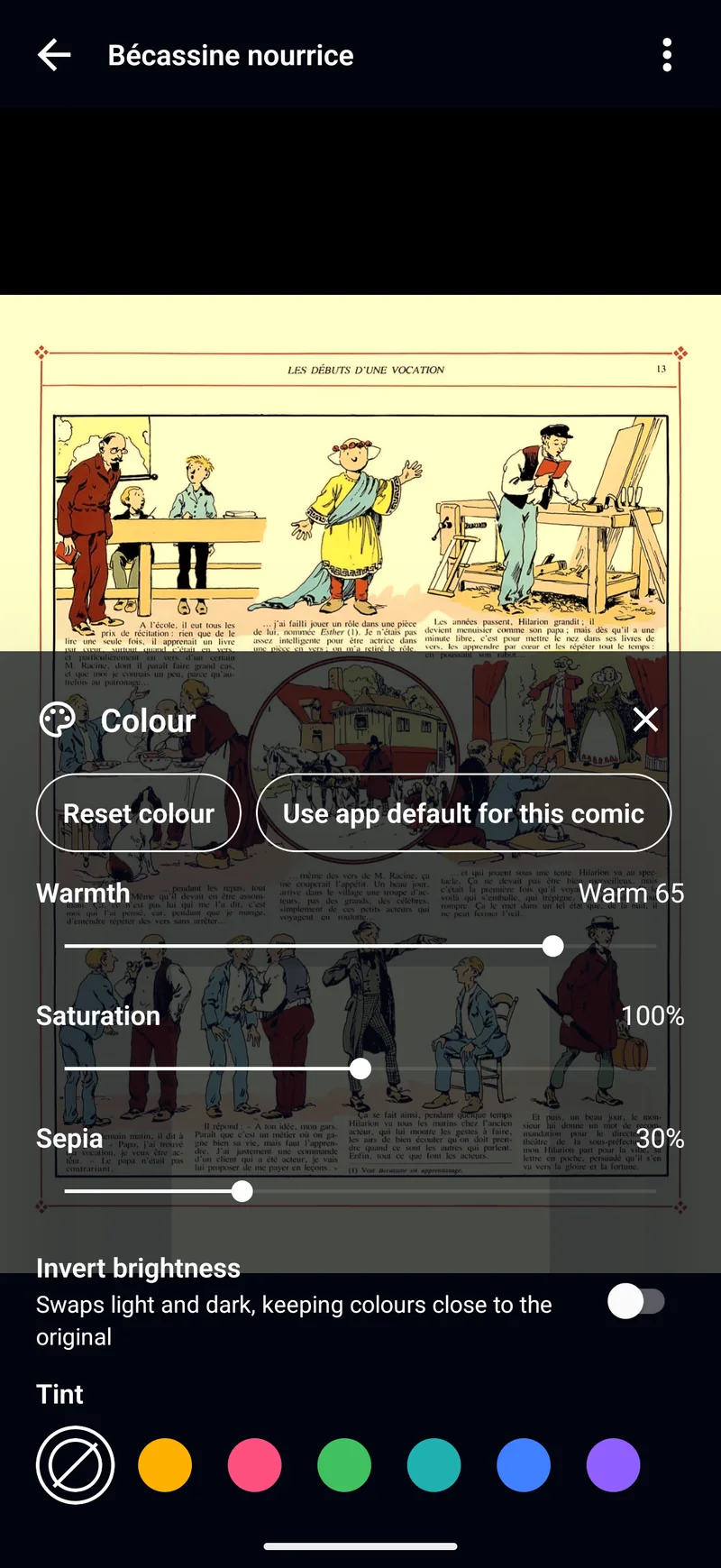
Colour in the reader menu changes how the whole page looks:
- Warmth slides from cool to warm. Cool it down to take some of the yellow out of aged paper, or warm it up to soften a harsh white page.
- Saturation turns the colour up or down. Lower it for garish reprints, raise it for faded ones.
- Sepia gives an even, old-paper tone.
- Tint lays a colour over the page: Amber, Rose, Green, Teal, Blue or Violet, or Custom with your own hue and strength.
Reset colour puts everything back. Colour applies in Single Page and Double Page view, and may not be available for every PDF.
Night reading
A white comic page in a dark room is a torch in the face. Three settings help:
- Invert brightness swaps light and dark while keeping colours close to the original, so a white page becomes dark without turning everyone blue. It suits black-and-white pages and text-heavy comics; on painted art the result varies, so try it page by page.
- Warmth pushed towards warm takes the blue edge off the light.
- Brightness in the reader controls dims the screen without leaving the comic.
Pair them with a black background and a dark app theme (Black suits OLED screens) and the reader stops lighting up the room.
Backgrounds
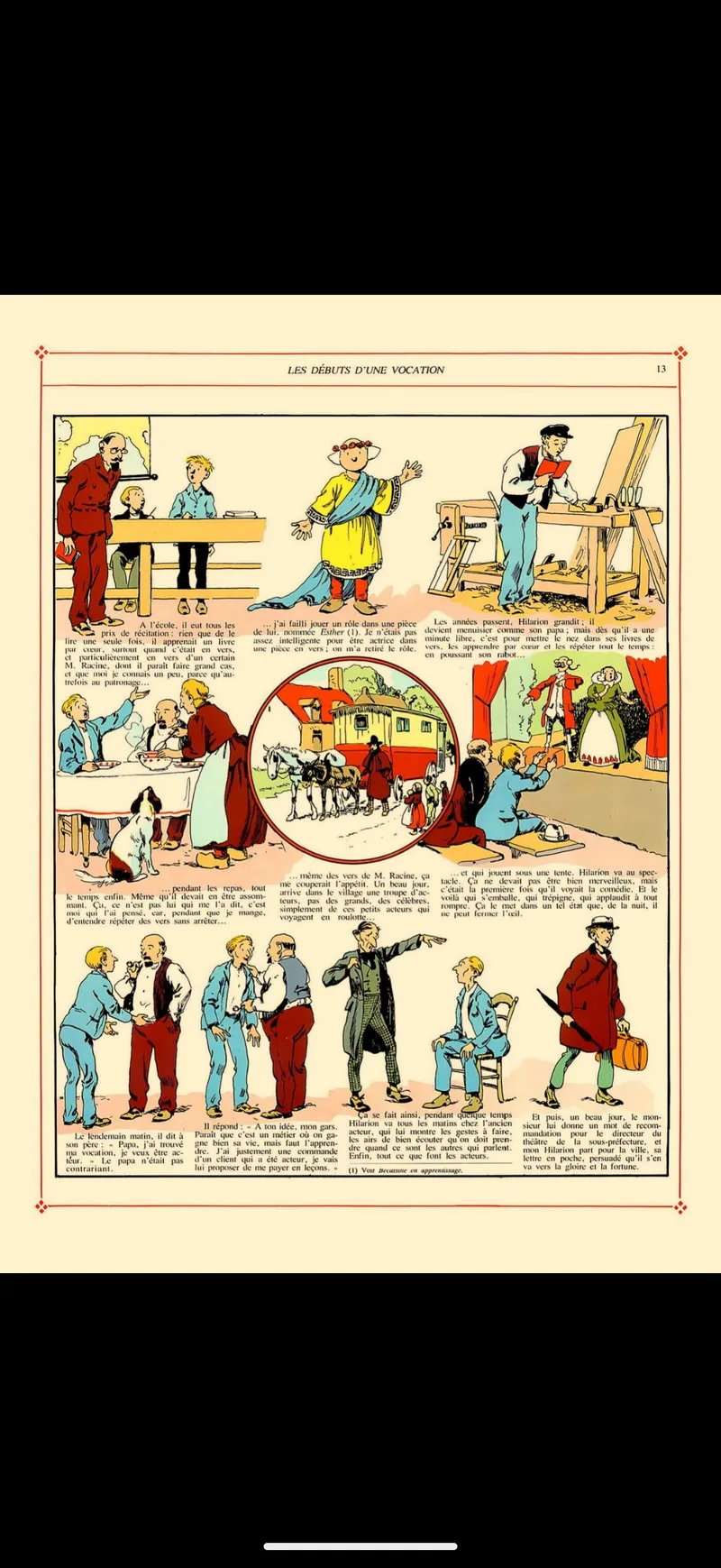
The Background setting decides what fills the screen around the page. Black is plain and calm. Match page uses the colour around the edge of each page, so an old cream or yellowed scan blends into the screen instead of sitting in a black frame. Immersive fills the space with a soft, blurred copy of the page; it is used in Single and Double Page, with Match page standing in elsewhere, and on Low Power Mode or Battery Saver it draws a simpler colour blend.
Page fit for odd-shaped scans
Scans come in every shape: cropped tight, padded, sideways spreads. Page Fit decides how they meet the screen. Automatic picks for each page; Fit Width makes the most of a phone held upright; Original Size shows one image pixel per screen point, which is the quickest way to see how much detail a scan really has. Remove Borders and Page Fit together often do more for a cramped scan than any filter.
This comic or every comic
Changes you make in the reader belong to the comic you have open. Each sheet has a way back: Use app defaults for this comic in Image Filters, and Use app default for this comic in Colour and Background. Set the app defaults in Settings under Reader colour and Reader background.
If you have a set of filters that suits a whole run of scans, save it in a reader preset from Settings > Reader Presets and apply it with one tap to the next issue.
Frequently asked questions
How do I get rid of the dot pattern on scanned comics?
That ripple is moiré, from the printing dots clashing with the screen. In TritonPanels, turn on Reduce Moire in Image Filters. Reduce Noise can help as well on grainy scans.
Do the filters change my comic files?
No. Filters, colour and background are applied as the page is displayed. The file is untouched, and you can turn any of them off again.
How do I remove the white margins from scanned pages?
Turn on Remove Borders in Image Filters. It crops the blank margin around each page so the art fills more of the screen.
Is there a dark mode for comic pages?
Yes. Invert brightness in the Colour sheet turns a white page dark while keeping colours close to the original. Combine it with warmth, lower brightness and a black background for reading at night.
Read your comics with TritonPanels
A comic and manga reader for iPhone, iPad and Android. CBZ, CBR, CB7, CBT, PDF and image-based EPUB from your device, your cloud, a network share or your own Komga, Kavita or OPDS server — single page, spreads, continuous scroll or Panel by Panel. No ads, no account. 14-day free trial, then a monthly or yearly subscription.
Your own files: TritonPanels reads comics you already have. It does not sell, host or supply comics, and it cannot open copy-protected (DRM) purchases that are locked to another store’s app. Komga, Kavita, Calibre, Dropbox and the other names on this page belong to their owners, who do not endorse TritonPanels.