 TritonPanels
The short answer
Hold the tablet upright for one page at a time, and turn it sideways for two-page spreads. In TritonPanels, turn on Automatic Single/Double by Orientation and the reader does that switch for you. Then pick a Page Fit that suits the shape of your screen, choose a Background for the space around the page, and, if the tablet lives on a stand, turn pages from a keyboard, game controller or media remote.
Every one of those settings can be saved together as a reader preset, so a new comic looks right from the first page. The sections below take them one at a time.
Two-page spreads with Double Page
Comics are drawn as facing pages, and many artists use the full width for a single image. Double Page, in the Reading Mode sheet, shows two pages side by side as they were printed. The cover is shown on its own, a page that is already a wide spread is shown on its own, and the rest pair up. If the pairs land one page out, Page Grouping in the reader menu lets you show a page alone, pair it with the next page, or re-pair the rest of the book from the current page.
Pinch or double tap to zoom into the whole spread, and the next swipe or tap turns the pair together. In right-to-left reading the pages swap sides but keep their numbers. PDFs show one page at a time; Double Page is not available for them.
Single page in portrait, double page in landscape
Turn on Automatic Single/Double by Orientation in Settings, or for one comic in its Reading Mode sheet. The reader then shows Single Page when the tablet is upright and Double Page when it is sideways. Your saved reading mode does not change, and Panel by Panel and Continuous Scroll are left alone, so a comic you are reading panel by panel stays that way. TritonPanels works in every orientation on phones as well as tablets, so the same setting helps on a large phone held sideways.
Page fit on a big screen
Most tablets are a different shape from a comic page, so something has to give. Page Fit in the reader menu decides what. Set a default for every comic with Default Page Fit in Settings.
| Page Fit | What it does | Good for |
|---|---|---|
| Automatic | Picks Fit Width, Fit Height, Fit Screen or Fill Screen for each page from its shape and your screen | A sensible default for most collections |
| Fit Width | Fills the width; a tall page starts at the top and you drag to see the rest | Reading a page in two halves in landscape |
| Fit Height | Fills the height; a wide page starts at its reading edge | Wide pages and strips |
| Fit Screen | Shows the whole page | Seeing the full layout at once |
| Fill Screen | Fills the screen and crops the overflowing edges equally | Pages close to the screen’s shape |
| Original Size | One image pixel per screen point; never enlarges a small page | Checking scan quality |
Continuous Scroll always fits the width and Panel by Panel frames each panel itself; your Page Fit choice is kept for Single and Double Page.
Background, brightness and keeping the screen on
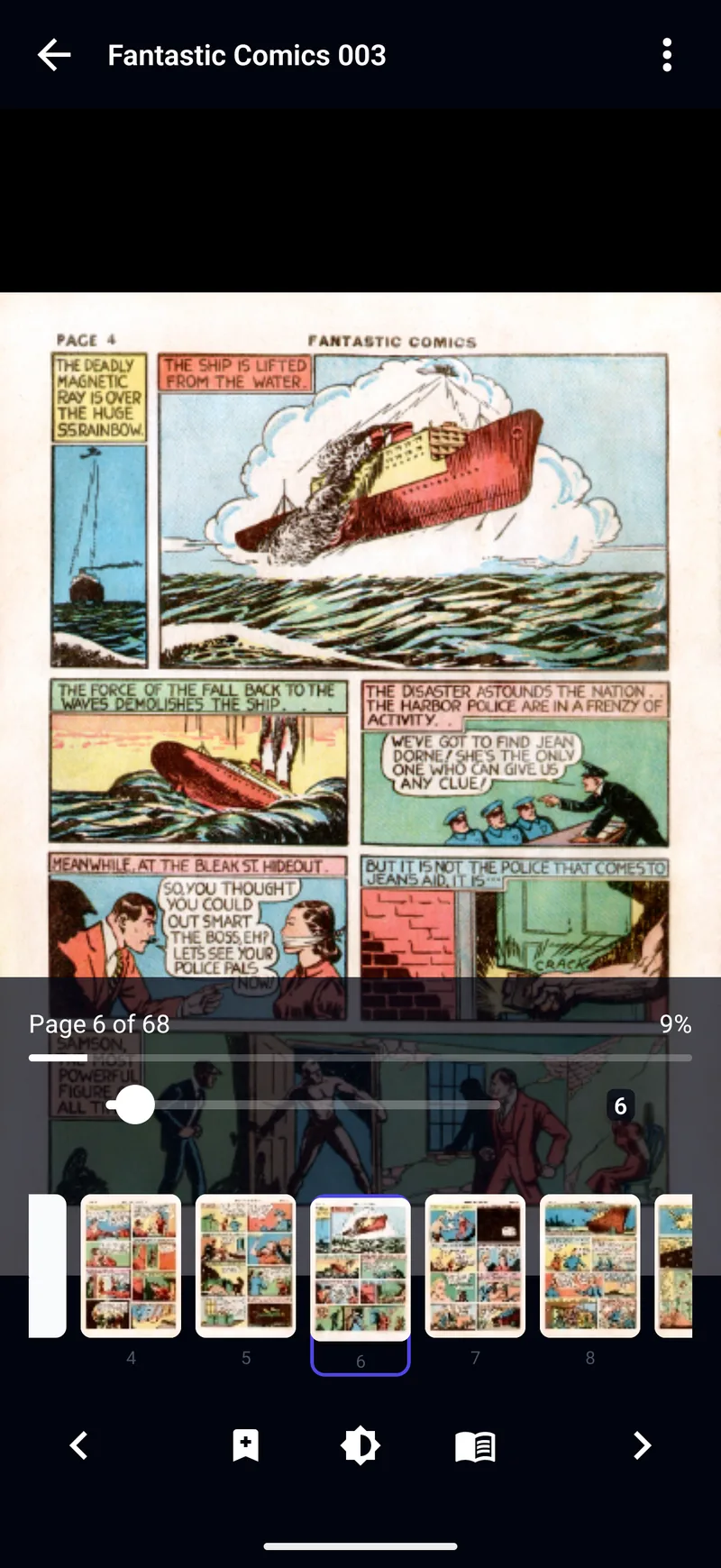
On a tablet there is often a lot of screen around the page. Background in the reader menu sets what fills it: Black, Match page (the colour around the edge of each page, so an old yellowed scan blends in), or Immersive (a soft, blurred copy of the page). Immersive is used in Single and Double Page; in the other modes Match page stands in, and on Low Power Mode or Battery Saver it draws a simple colour blend instead of the blur.
Brightness in the reader controls changes screen brightness without leaving the comic. Keep Screen On in Settings stops the tablet sleeping mid-page, and Controls Timeout sets how long the toolbar stays before it hides — or “Stay until I tap”.
Keyboards, game controllers and remotes
A tablet on a stand is awkward to reach across for every page. TritonPanels turns pages from:
- A keyboard: the left and right arrow keys. In a right-to-left comic they swap, so the left arrow moves forward.
- A game controller: the D-pad left and right, and the shoulder buttons and triggers, follow the sides of the screen in the same way; D-pad up and down always mean back and forward.
- A media remote: its previous and next buttons.
In Panel by Panel the same inputs move one panel at a time.
Custom tap zones and gestures
Settings > Reader Gestures lets you choose what each part of the screen does. There are three tap zones — left, middle and right — and four swipes, and each can be set to Previous page or panel, Next page or panel, Show or hide controls, Open brightness or No action. On a big screen it often helps to make both side zones turn forward, so you can read one-handed from either side.
Two things to know. Tap zones turn pages when Page Turn Style is Tap to Turn, and always in Panel by Panel; otherwise they show and hide the controls. And a two-finger tap always shows or hides the controls, whatever you set, so you can never lock yourself out of the toolbar.
Save it as a reader preset
Once a comic looks right, keep it. TritonPanels has four built-in presets — Standard, Two-Page, Manga and Guided Panels — and you can create up to 50 of your own in Settings > Reader Presets. A preset holds the view, page fit, page turn, reading direction, image filters and more, and Reader Preset in the reader menu applies one to the comic you have open. A “tablet spreads” preset and a “phone panels” preset cover most collections.
The guides that sit next to this one are Panel by panel comic reading, Make scanned comics look better and Read manga on iPhone, iPad and Android.
Frequently asked questions
How do I see two pages at once on an iPad?
Choose Double Page in the reader’s Reading Mode sheet, or turn on Automatic Single/Double by Orientation and turn the iPad sideways. The cover and any wide spread are shown on their own, and the rest pair up.
Can I turn comic pages with a keyboard or game controller?
Yes. The arrow keys, a game controller’s D-pad, shoulder buttons and triggers, and a media remote’s previous and next buttons all turn pages, and step through panels in Panel by Panel.
Why is there a black border around my comic pages?
The page is a different shape from the screen. Change Page Fit to fill more of it, or change Background to Match page or Immersive so the space around the page takes on its colours.
Does TritonPanels work on Android tablets as well as iPad?
Yes. It runs on iPhone and iPad with iOS or iPadOS 17 or later, and on Android phones and tablets with Android 7.0 or later, in every orientation.
Read your comics with TritonPanels
A comic and manga reader for iPhone, iPad and Android. CBZ, CBR, CB7, CBT, PDF and image-based EPUB from your device, your cloud, a network share or your own Komga, Kavita or OPDS server — single page, spreads, continuous scroll or Panel by Panel. No ads, no account. 14-day free trial, then a monthly or yearly subscription.
Your own files: TritonPanels reads comics you already have. It does not sell, host or supply comics, and it cannot open copy-protected (DRM) purchases that are locked to another store’s app. Komga, Kavita, Calibre, Dropbox and the other names on this page belong to their owners, who do not endorse TritonPanels.