 TritonPanels
The short answer
A CBZ is a ZIP file of page images with a .cbz extension. To make one: put the pages in a folder, name them so they sort in reading order (001.jpg, 002.jpg…), optionally add a ComicInfo.xml with the title and series, compress the files into a ZIP, and rename the ZIP to .cbz. There is no special software involved, and nothing in the images changes.
Prepare the pages
Start with one folder per comic, containing only the pages. Then sort out three things before you compress anything.
Names
Readers show pages in filename order, so the names are the page order. Use zero-padded numbers with the same number of digits throughout: 001.jpg to 120.jpg, not 1.jpg to 120.jpg, which an alphabetical sort reads as 1, 10, 100, 101… Put the cover first by calling it 000.jpg. A double-page spread can stay as one wide image; readers that show two-page spreads handle it.
Formats
JPEG is the safe default for scanned or painted pages, and PNG suits line art and lettering with flat colour. WebP is widely supported and smaller. TritonPanels also reads GIF, BMP, TIFF, AVIF, HEIC/HEIF, JPEG XL and Netpbm, but other readers may not, and on Android HEIC needs Android 9 or later and JPEG XL is not supported. If the archive might travel to other people or devices, stick with JPEG, PNG or WebP.
Sizes
A page somewhere around 1,500 to 2,500 pixels tall is sharp on a phone and still good on a tablet. Much larger pages look no better on a phone screen but make the file slower to import and open. JPEG quality around 85–90 is usually indistinguishable from maximum at a fraction of the size. Crop scanner borders and straighten crooked scans before you pack them; improving scanned comic pages covers the rest.
Add a ComicInfo.xml (optional, recommended)
ComicInfo.xml is a small text file that sits next to the pages and describes the comic. It is optional, but it is what lets a reader or a comic server group the issue with the rest of its series, sort it by number and show the writer and publisher. Create it in any plain text editor and save it with exactly that name. A minimal one looks like this:
<?xml version="1.0" encoding="utf-8"?>
<ComicInfo>
  <Series>Fantastic Comics</Series>
  <Number>3</Number>
  <Title>The Deadly Magnetic Ray</Title>
  <Year>1940</Year>
  <Writer>Jane Example</Writer>
  <Publisher>Example Press</Publisher>
</ComicInfo>
Leave out any field you don’t know rather than guessing. Characters such as & in a title must be written as &, or the file is invalid and readers ignore it. ComicInfo.xml explained lists the other fields.
On Windows
- Open the comic’s folder and select everything in it: the pages and
ComicInfo.xml. Select the files, not the folder. - Right-click and choose Compress to ZIP file. On older versions it is Send to › Compressed (zipped) folder.
- Rename the new file to the comic’s name, ending in
.cbz. Turn on File name extensions in File Explorer’s View menu if you can’t see the.zip.
On a Mac
- Open the folder in Finder, select the pages and
ComicInfo.xml, right-click and choose Compress. - Rename
Archive.zipto the comic’s name ending in.cbz, and choose to use.cbzwhen Finder asks.
Finder may add a hidden __MACOSX folder. If a reader shows odd blank pages, build the archive in Terminal from inside the folder with zip -r -X "../My Comic.cbz" ., which leaves it out.
On a phone or tablet
It is possible, but slower. On iPhone and iPad, select the pages in the Files app, tap the More button and choose Compress; then rename the ZIP to .cbz. On Android, some file manager apps can create ZIP archives from selected files; the menu wording varies by app. Check the page names first, because photos straight off a camera are named by date and time, not by page.
Naming the result Series Name #001 (Year).cbz is a good habit: if the ComicInfo.xml is ever lost, TritonPanels and many other readers can still read the series, issue number and year from the name.
Test it in the app
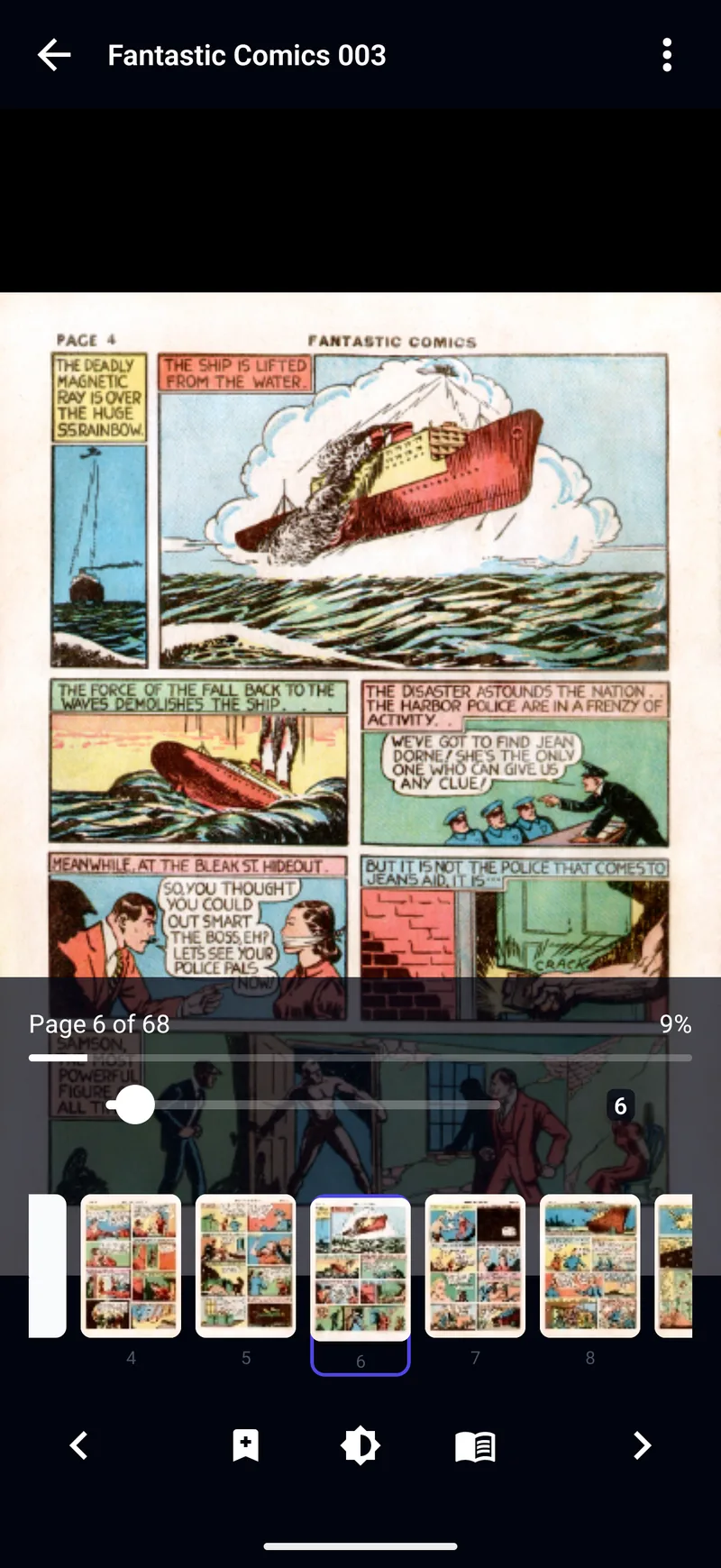
Import the CBZ into TritonPanels: open Connect Storage and tap Import from Device, use Open in TritonPanels from another app, or transfer it over Wi-Fi from your computer. Then check three things: the cover is the right page; the thumbnail strip shows the pages in order, with no gaps or blank pages; and the comic’s details show the series and number you put in ComicInfo.xml. If the order is wrong, fix the names and compress again; the archive itself is never the problem.
Common mistakes
- Zipping the folder instead of its contents. One folder inside the archive is usually fine, but a folder inside a folder can confuse some readers. Select the pages themselves.
- Leaving extras in. Text files, scanner thumbnails or a second copy of the cover become extra pages, or are ignored, depending on the reader. Keep only the pages and
ComicInfo.xml. - A double extension. With extensions hidden, renaming gives
comic.cbz.zip, which opens as a plain archive. Show extensions before renaming. - One huge archive. A whole run of issues in a single file is slow to open and impossible to track issue by issue. Make one CBZ per issue or per volume.
- Mixed page sizes. A few pages scanned at a very different resolution look odd when you turn to them. Resize them to match the rest before packing.
The golden rule: pages sort by filename, so pad every number to the same length. Almost every “my CBZ is in the wrong order” problem is 10.jpg sorting before 2.jpg.
Frequently asked questions
What is the difference between a CBZ and a ZIP file?
Only the extension. A CBZ is a ZIP archive of page images, renamed so that comic readers recognise it and the operating system does not offer to unpack it.
Should I compress the images in a CBZ?
There is no need. JPEG, PNG and WebP are already compressed, so ZIP compression saves almost nothing. Reducing oversized images or lowering JPEG quality slightly is what makes a CBZ smaller.
Do I need a ComicInfo.xml file?
No. A CBZ with only images works everywhere. ComicInfo.xml adds the series, number, writer and other details that keep a large library tidy. Without it, readers rely on the filename.
Can I make a CBZ from a PDF?
You can export the PDF’s pages as images with a PDF tool and pack those, but there is often no need: TritonPanels reads PDF comics directly. See reading PDF and EPUB comics.
Read your comics with TritonPanels
A comic and manga reader for iPhone, iPad and Android. CBZ, CBR, CB7, CBT, PDF and image-based EPUB from your device, your cloud, a network share or your own Komga, Kavita or OPDS server — single page, spreads, continuous scroll or Panel by Panel. No ads, no account. 14-day free trial, then a monthly or yearly subscription.
Your own files: TritonPanels reads comics you already have. It does not sell, host or supply comics, and it cannot open copy-protected (DRM) purchases that are locked to another store’s app. Komga, Kavita, Calibre, Dropbox and the other names on this page belong to their owners, who do not endorse TritonPanels.