 TritonPanels
The short version
In TritonPanels, tap the + button in the Library to open Connect Storage, then choose Transfer over Wi-Fi and tap Start transfer server. The phone shows an address and a session code. On a computer connected to the same Wi-Fi, type that address into any browser, enter the code, and drag your comics onto the page. Each file is imported into your library as it arrives.
Nothing goes through the internet or through TritonApps: the files travel straight from the computer to the phone across your own network. The server switches itself off after 5, 10 or 30 minutes, and the page uses plain HTTP, so use it at home or on another private network you trust, never on café or hotel Wi-Fi.
Before you start
- Same network. The phone and the computer must be on the same private Wi-Fi or wired network. A computer plugged into the same router by Ethernet is fine.
- Supported files. The transfer page accepts CBZ, CBR, CBT, CB7 and PDF. EPUB comics and compressed TAR files (
.tgz,.txzand so on) are readable in TritonPanels, but bring those in another way, such as the Files app or Import from Device. CBR files must be RAR4; RAR5 archives are not supported, and converting them to CBZ fixes that. - Keep the app on screen. The server stops if TritonPanels leaves the screen, so do not switch apps while files are uploading, and keep the phone awake. Plugging it in to charge helps on a big batch.
- Free space. The phone needs room for the comics. If storage runs low the server stops rather than filling the device.
Step by step
- Open TritonPanels and tap + (Add comics) in the Library. If you are viewing all libraries at once, the app first asks which library the comics should go into.
- On Connect Storage, under Local network, tap Transfer over Wi-Fi. Opening the screen starts nothing.
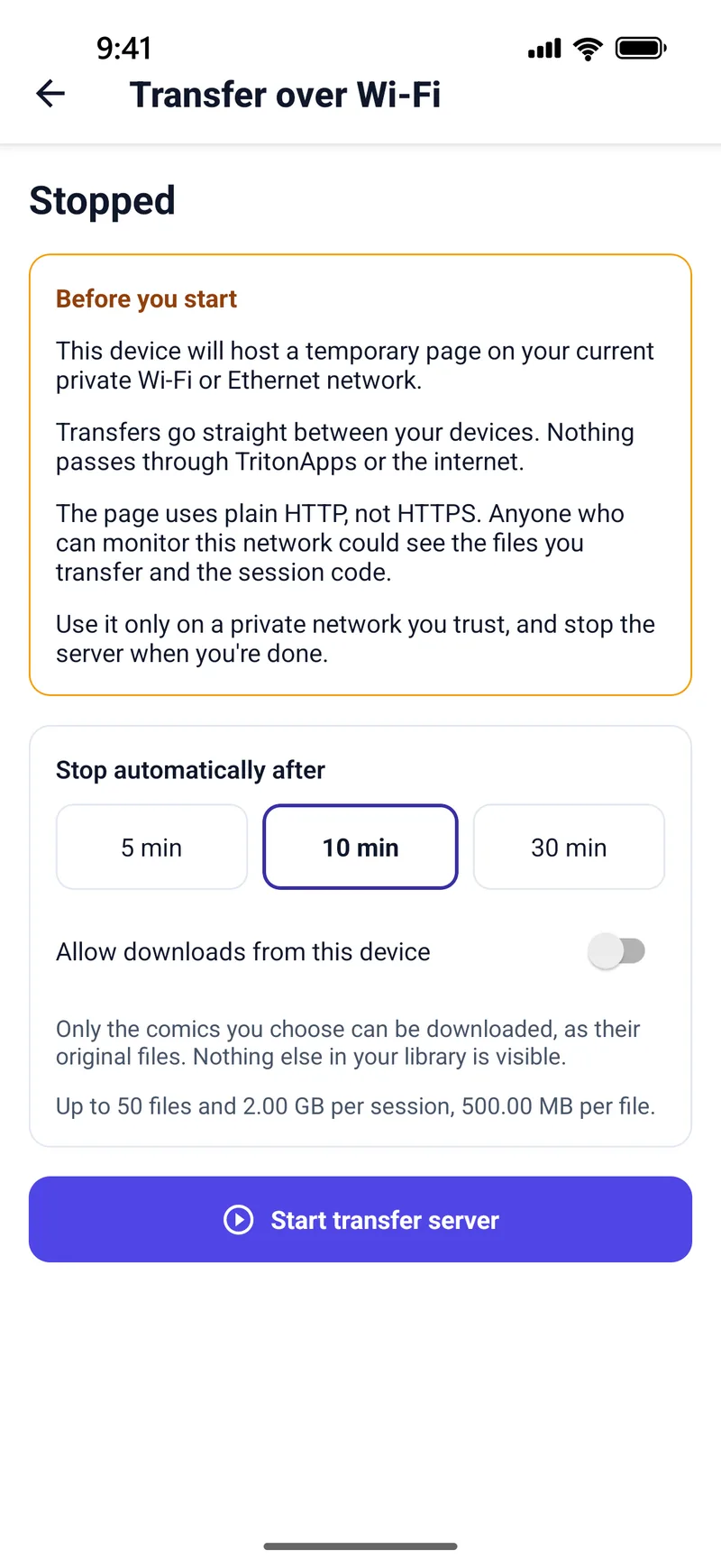
- Read the Before you start card, then choose how long the server should run under Stop automatically after: 5, 10 or 30 minutes. Ten is the default.
- Tap Start transfer server. The screen shows an Address, a QR code and a Session code, which stays masked until you tap Show code.
- On the computer, open a browser and type the address exactly as shown, or tap Copy address and send it to yourself. If the sending device is another phone or a tablet, scanning the QR code opens the page with the code already filled in.
- On the page, under Enter the session code, type the code and click Connect. A mistyped code is refused, and too many wrong attempts lock pairing for a minute.
- Under Send comics, drag files onto the page or click Choose files. Each one moves through Receiving, Importing and Imported, on the page and on the phone.
- If a file needs a decision — for example, it looks like a comic already in your library — the phone shows An upload needs your decision on this device. Answer it on the phone.
- When you are done, tap Stop server. Otherwise it stops by itself when the time runs out.
New comics appear in the library you chose and under Recently imported, so you can check what arrived. To connect a second computer while the server is running, tap Pair another device.
The limits, and why they exist
| Limit | Value |
|---|---|
| Files per session | Up to 50 |
| Total size per session | 2.00 GB |
| Largest single file | 500.00 MB |
| Automatic stop | After 5, 10 or 30 minutes |
The limits keep a session short and contained: a server that is only open for a few minutes, for a bounded amount of data, is a server that cannot be left running on the network by accident. If you have more than 50 files or 2 GB to send, stop the server and start a new session; each one has a fresh allowance. The page shows what is left as you go. A file that breaks a limit fails on its own with a reason such as Too large or Session file limit reached, and the rest carry on.
Copying comics back to the computer
The transfer can also run the other way. Before you start the server, turn on Allow downloads from this device and tap Choose comics to pick which ones the computer may download. Only the comics you pick are offered, as their original files, and only for this session: nothing else in your library is visible from the browser. Comics that have no copy on the phone (for example, ones still on a server) cannot be chosen. On the computer, the page then shows a Download from the device section.
How secure is it?
Use it only on a private network you trust. The page uses plain HTTP, not HTTPS, so anyone able to monitor the network could see the files you transfer and the session code. That is fine on your home Wi-Fi and not fine on public Wi-Fi.
Within that, the design keeps exposure small. The server only starts on a private Wi-Fi or Ethernet network and stops by itself if the network changes, if the time runs out or if you leave the screen. A long session code is needed before anything can be sent or downloaded. Nothing is uploaded to TritonApps or any cloud service, and the app has no account to sign in to.
If the page will not load
- Check both devices are on the same network. A computer on a separate “5 GHz” or mesh network name is usually still the same network, but a guest network is often not.
- Guest Wi-Fi and some office networks isolate devices from each other on purpose, so a phone cannot be reached from a laptop. Use your main home network instead.
- Type the address exactly, including the number after the colon. It starts with
http://, nothttps://; some browsers try HTTPS first. - “Connect to a private Wi-Fi or Ethernet network first.” means the phone is on mobile data or a network the app does not treat as private.
- The server stopped mid-transfer. The phone shows why: the time ran out, TritonPanels left the screen, the network changed or storage ran low. Start a new session; finished files are already imported.
Other ways to get comics onto the device
iPhone and iPad: a USB cable and Finder
Connect the iPhone or iPad to a Mac with a cable, select it in the Finder sidebar and open the Files tab. TritonPanels has its own folder there; drag comics onto it. On Windows, Apple’s Devices app offers the same file sharing. Files dropped into TritonPanels’ folder — from Finder or from the Files app on the device — are imported automatically, and anything that cannot be added stays in the folder with a reason.
Android: USB file transfer
Plug the phone into a computer, choose File transfer in Android’s USB notification, and copy the comics into a folder such as Documents/Comics. Then, in TritonPanels, either import them with Import from Device, or add the folder as a live library with Add a folder or drive so new files show up on their own. Reading comics from a folder, USB drive or SD card explains the difference.
Cloud storage
If your comics already live in Google Drive, Dropbox or OneDrive, you can import from there or keep a Dropbox folder as a live library. See reading comics from Google Drive, Dropbox or OneDrive.
Frequently asked questions
Do I need to install anything on my computer?
No. The computer only needs a web browser. TritonPanels hosts the transfer page on the phone, and you open its address in the browser while both devices are on the same Wi-Fi.
Do my comics go through the internet or a TritonApps server?
No. Transfers go straight between your devices on your own network. Nothing passes through TritonApps or the internet, and there is no account involved.
How many comics can I send at once?
Up to 50 files and 2.00 GB per session, with a maximum of 500.00 MB per file. For a larger batch, stop the server and start another session.
Can I send EPUB comics over Wi-Fi?
The transfer page accepts CBZ, CBR, CBT, CB7 and PDF. Image-based EPUB comics open in TritonPanels, but add them through the Files app, a cloud service or Import from Device instead.
Is Transfer over Wi-Fi safe on public Wi-Fi?
No. The page uses plain HTTP, so someone monitoring a shared network could see the files and the session code. Use it only on a private network you trust, such as your home Wi-Fi.
Read your comics with TritonPanels
A comic and manga reader for iPhone, iPad and Android. CBZ, CBR, CB7, CBT, PDF and image-based EPUB from your device, your cloud, a network share or your own Komga, Kavita or OPDS server — single page, spreads, continuous scroll or Panel by Panel. No ads, no account. 14-day free trial, then a monthly or yearly subscription.
Your own files: TritonPanels reads comics you already have. It does not sell, host or supply comics, and it cannot open copy-protected (DRM) purchases that are locked to another store’s app. Komga, Kavita, Calibre, Dropbox and the other names on this page belong to their owners, who do not endorse TritonPanels.