 TritonPanels
The short answer
TritonPanels can browse any OPDS catalog, and it has its own connect card for Calibre’s Content Server. Add the catalog’s address once, and you can browse its sections, search, sort and filter, open a comic straight into the reader, download it for offline reading, or import it into your library. OPDS 1 and OPDS 2 are both supported.
One limit to know up front: OPDS connections are read-only. Your reading progress is kept on your device and is never sent to the server. If you want progress kept in step with a server, use Komga or Kavita, which have their own cards. TritonPanels needs a subscription after a 14-day free trial.
What OPDS is
OPDS, the Open Publication Distribution System, is an open standard for publishing a catalogue of books over the web. A server describes its collection as a set of feeds — sections, lists of titles, search, and links to download each file — and any reading app that understands OPDS can browse it. OPDS 1 is built on Atom feeds; OPDS 2 uses JSON.
Calibre, the free and open-source e-book manager, publishes one through its Content Server, and many self-hosted library servers do too. Because it is a standard, you set up the server once and any compatible app can read from it.
Some online libraries of out-of-copyright books publish OPDS catalogs too, but most of what they carry is text e-books. TritonPanels reads comics — CBZ, CBR and the other comic archives, PDF, and image-based EPUB — and not text-only, reflowable EPUB, so a catalog of novels is of little use in it.
Start Calibre’s Content Server
- In Calibre on your computer, click Connect/share and choose Start Content server.
- Note the port. Calibre uses 8080 unless you changed it.
- Find the computer’s address on your home network, such as
192.168.1.20. If your firewall asks whether to allow Calibre on private networks, allow it. - Optional: in Calibre’s preferences under Sharing over the net, require a user name and password to access the Content Server.
Keep your comics in Calibre as CBZ, CBR or PDF. When a book has several formats, TritonPanels chooses one it can read; a book with no supported comic or PDF format is marked as such.
Connect TritonPanels to Calibre
- In TritonPanels, tap the + button in your library to open Connect Storage.
- Under CATALOGS, tap Calibre Content Server.
- Enter a Name and the Content Server or OPDS address with
http://typed in full, for examplehttp://192.168.1.20:8080. If the address doesn’t end in/opds, TritonPanels also tries/opdsbeneath it. - If your Content Server requires an account, fill in User name (optional) and Password (optional). Otherwise leave both empty.
- Tap Test and save, read the unencrypted-connection and port warnings, and confirm. On iPhone and iPad, allow Local Network access when asked.
If the address turns out to be an OPDS catalog that isn’t Calibre, the app offers Add it as an OPDS catalog instead.
Other OPDS catalogs
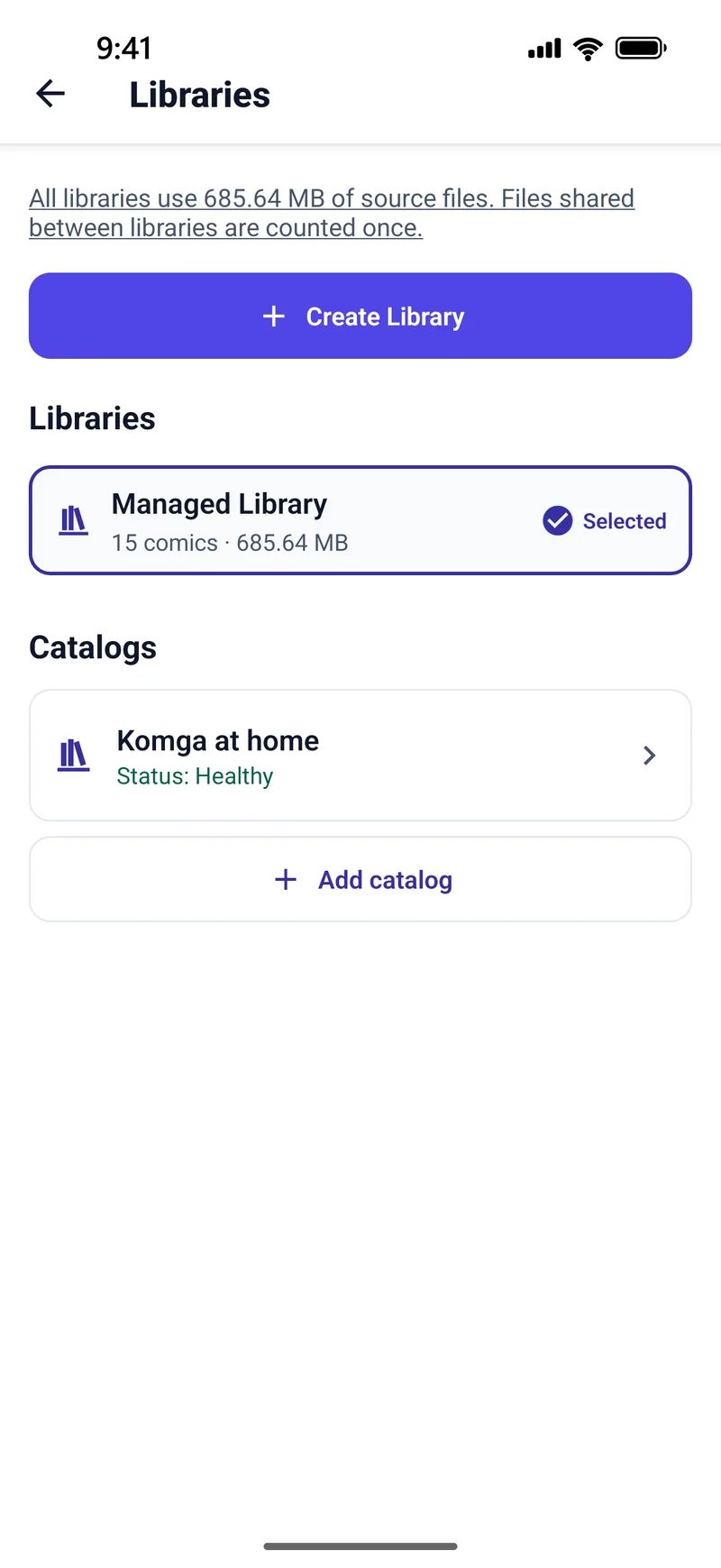
For any other catalog, tap OPDS catalog on the Connect Storage screen, or Add catalog under Catalogs on the Libraries screen. Enter the Catalog address and, if you like, a Name (optional), then tap Check catalog. The app reports whether it found an OPDS 1 or OPDS 2 catalog; tap Add catalog to save it. If the catalog asks you to sign in, you choose how on the next screen.
Sign-in types, and when each is allowed
Open catalogs need no sign-in. For the rest, TritonPanels supports the common methods but only sends a password or token where it cannot be read on the way:
| Method, as the app names it | Where it is allowed |
|---|---|
| User name and password | HTTPS only |
| User name and password (Digest) | HTTPS, or plain HTTP on your home network |
| Access token or API key | HTTPS only |
| Sign in with the server’s own page | Opens your browser; the app never sees your password |
In practice: Calibre’s Content Server uses Digest by default, so it signs in fine at home over plain HTTP. A home server that offers only a plain user name and password needs a public HTTPS address, or anonymous browsing, before the app will sign in. Sign-ins are saved only in the device’s secure storage and sent only to that catalog. Plain HTTP works only for servers on your home network; HTTPS needs a public address and a certificate your device trusts.
Browsing, searching, sorting and filtering
A catalog opens at its top level, with breadcrumbs as you go deeper and Load more for long lists. When the catalog offers search, Search this catalog searches the whole server; when it doesn’t, the box searches only the items loaded so far and tells you so. Sort and Filter list only the orders and filters the catalog itself offers, so what you see varies from server to server. Each item shows its format and whether it is downloaded.
Read-only: progress, offline copies and imports
Opening an item streams it into the full reader. Because OPDS has no standard way to report progress back, the item’s progress reads On this device: it is never sent to the server. For each item you can:
- Open it to read straight away.
- Make available offline to keep a downloaded copy for reading without a connection.
- Import to My Library to copy it into your library as an ordinary comic, which stays if you later remove the catalog.
If the server is off or out of reach, the app shows the catalog as it was last saved and downloaded items still open. Read more in reading comics offline.
Frequently asked questions
Can I read my Calibre comics on my phone?
Yes. Start Calibre’s Content Server, then add its address in TritonPanels with the Calibre Content Server card. You can browse, search and read your comics, and download them for offline reading.
Does TritonPanels sync reading progress with an OPDS server?
No. OPDS connections are read-only, so progress stays on your device. Komga and Kavita have their own cards that do keep progress in step with the server.
Which OPDS versions are supported?
OPDS 1 and OPDS 2, including search, sort and filters (facets) where the catalog offers them. If a server offers both, the app tells you which one it will use.
Why won’t my catalog accept my password at home?
TritonPanels sends a plain user name and password, or a token, only over HTTPS. On a home network over plain HTTP it can sign in only with Digest, which Calibre’s Content Server uses by default. Otherwise use a public HTTPS address or the server’s anonymous browsing.
Read your comics with TritonPanels
A comic and manga reader for iPhone, iPad and Android. CBZ, CBR, CB7, CBT, PDF and image-based EPUB from your device, your cloud, a network share or your own Komga, Kavita or OPDS server — single page, spreads, continuous scroll or Panel by Panel. No ads, no account. 14-day free trial, then a monthly or yearly subscription.
Your own files: TritonPanels reads comics you already have. It does not sell, host or supply comics, and it cannot open copy-protected (DRM) purchases that are locked to another store’s app. Komga, Kavita, Calibre, Dropbox and the other names on this page belong to their owners, who do not endorse TritonPanels.