 TritonPanels
The short answer
Comics you imported into TritonPanels are already stored on the device and open anywhere, with or without a connection. Comics that live somewhere else — a network share, iCloud Drive, a Dropbox folder library, a Substack publication or a comic server — need a copy on the device before you go. Turn on Keep offline for the comic, the folder or the whole library (on a comic server, Make available offline), wait for the Downloads screen to finish, and check the comics say Kept offline.
What is already on your device
| Where the comic came from | Offline? | What to do |
|---|---|---|
| Imported (device, Files, Google Drive, Dropbox, OneDrive, Wi-Fi transfer) | Yes | Nothing. It shows On this device |
| A folder on the device or SD card | Yes | Nothing. The file is already there |
| A USB drive | Only while plugged in | Use Keep on this device on the comics you want |
| Network share, iCloud Drive, Dropbox folder, Substack | Only if downloaded | Turn on Keep offline |
| Komga, Kavita, Calibre or another OPDS server | Only if downloaded | Use Make available offline |
Keep offline: comic, folder or library
Opening a comic from a server or cloud folder downloads a copy, and that copy may well still be there next week. But an ordinary download can be removed to make room, so it is not something to rely on at 35,000 feet. Keep offline is the promise that it stays: kept comics are never removed to free up space.
- One comic: open its details and, under Availability, switch on Keep offline.
- A folder: switch on Keep offline for the folder. It downloads every comic in the folder, including ones added later, and keeps them on the device.
- A whole library: the same switch on the library does the same for everything in it.
- A comic server: open the book and tap Make available offline.
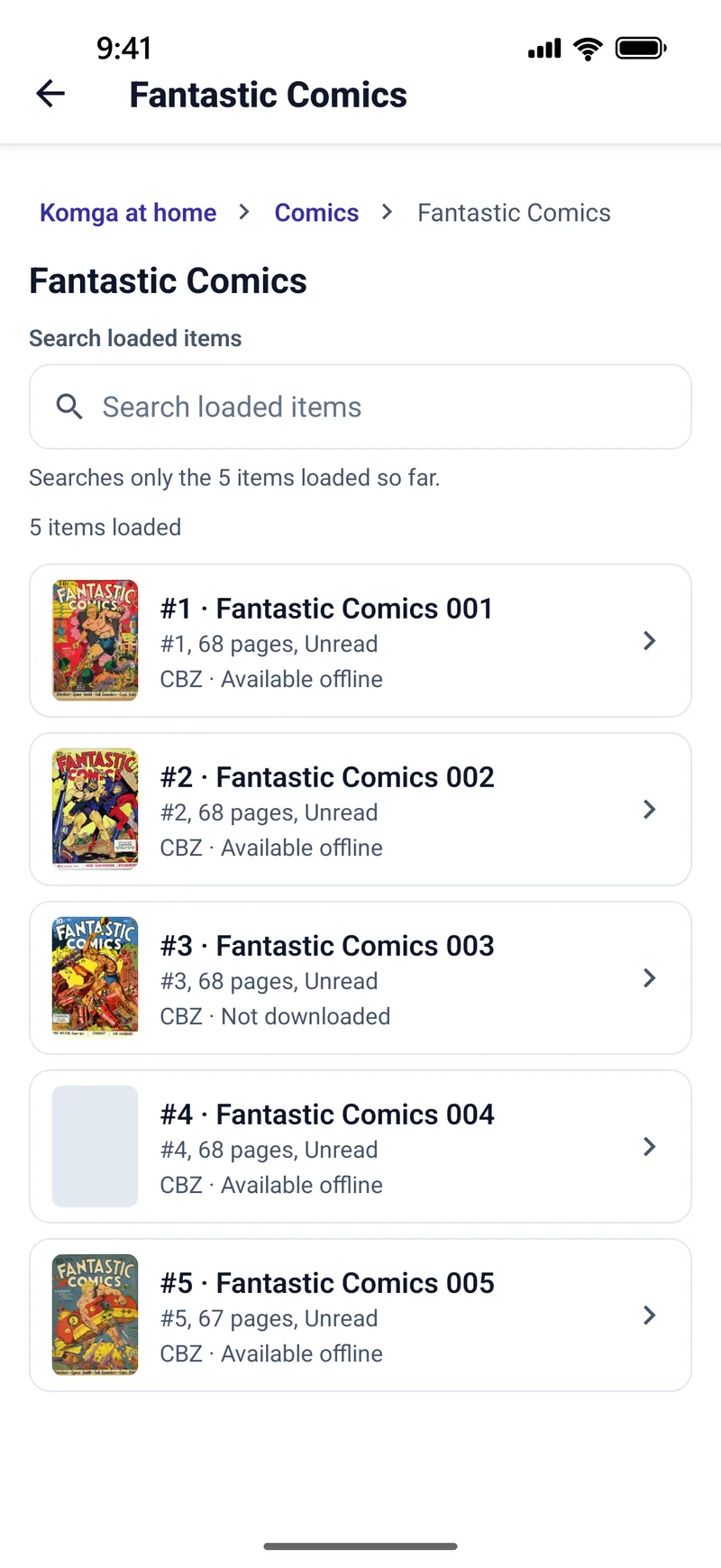
Library pages show how far along you are, for example “Downloaded 12 of 40 comics”. A comic kept offline because its folder or library is kept says so, and you turn it off at the folder or library rather than one comic at a time.
The Downloads screen
Every download in the app goes through one queue. Open it from the downloads indicator in the Library header while something is downloading, or from Settings → Downloads. Rows are grouped as Downloading, Queued, Paused, Needs attention and Completed, and you can pause, resume or cancel each one, or use Pause all and Resume all. Keep-offline work shows as one group per library, such as “Keeping Comics offline — 8 remaining”.
Before each download starts, the app checks there is room for it. If there is not, the row shows Not enough space with how much is needed and how much is free. A transfer that fails because of a flaky connection is retried a few times by itself before it asks you.
Mobile data and storage
If you do not want a big download eating your mobile data, turn on Avoid Cellular Data in Settings. Downloads then wait as Waiting for Wi-Fi, make no request at all, and start by themselves when you are back on Wi-Fi.
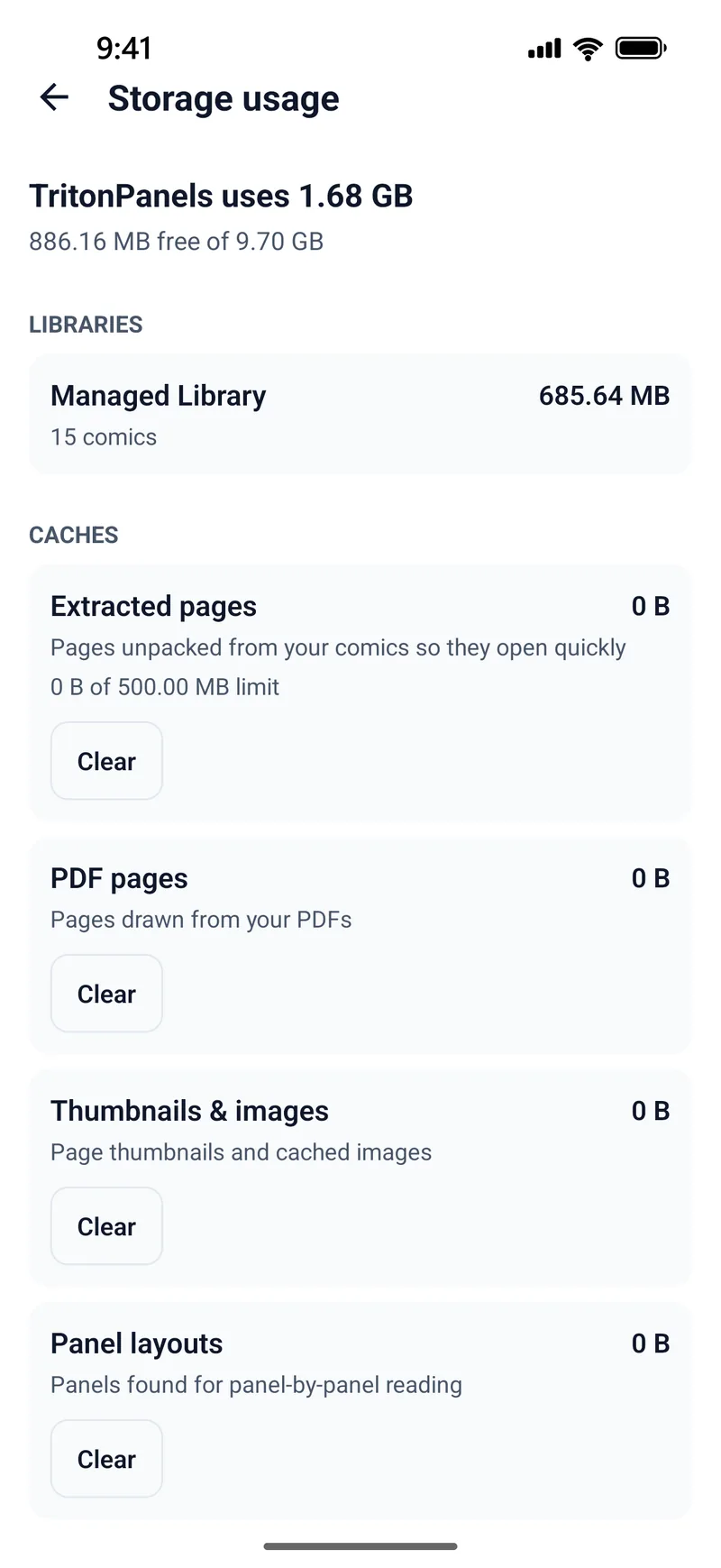
Comics you have opened but not kept count towards the Downloaded comics limit in Settings; when that fills up, the least recently opened ones are removed first. Kept comics never count and are never removed. Settings → Storage usage shows how much space each library takes, plus the caches the app keeps to make comics open quickly: extracted pages, PDF pages, thumbnails and images, and panel layouts for panel-by-panel reading. Each has a Clear button. Clearing a cache never deletes a comic or your progress; the pages are simply made again the next time you need them.
A checklist before you travel
- Pick what you will read and put it in one folder or reading list. A long journey goes through more comics than you expect.
- Turn on Keep offline for that folder, or Make available offline for server books.
- Open Downloads and wait until nothing is left under Downloading or Queued. If something is under Needs attention, deal with it now.
- Check a couple of comics say Kept offline or On this device.
- Copy from the USB drive. If the comics are on a drive you are leaving at home, use Keep on this device on them first.
- Download translation languages if you use Translate pages on Android: the language packs come from Google once, about 30 MB each.
- Test it: switch on aeroplane mode and open the first comic. It takes seconds and settles the question.
- Charge the device, and consider a darker theme and lower brightness for a long flight.
What happens to your reading while you are away?
Reading progress, bookmarks and notes are stored on the device, so they all work offline. If you read books from a Komga or Kavita server, your progress waits on the phone (“Will sync when the server is reachable”) and goes back to the server when you reconnect. On Calibre and other OPDS catalogues, progress stays on the device. When you are home again, turn Keep offline off for anything you have finished; the copies become ordinary downloads that can be cleared when space is needed, and nothing in your library is lost.
Frequently asked questions
Do imported comics need an internet connection?
No. An imported comic is stored on the device and opens without any connection. Only comics that live on a server, a network share or in the cloud need downloading first.
What is the difference between downloaded and kept offline?
A downloaded copy can be removed later to free up space. A comic kept offline is never removed to make room, so it will still be there when you have no signal.
Can I stop TritonPanels using mobile data for downloads?
Yes. Turn on Avoid Cellular Data in Settings. Downloads then wait as Waiting for Wi-Fi and start by themselves when you are back on Wi-Fi.
Will clearing caches in Storage usage delete my comics?
No. The caches hold extracted pages, PDF pages, thumbnails and panel layouts, which are made again when needed. Your comics, covers and reading progress are kept.
Read your comics with TritonPanels
A comic and manga reader for iPhone, iPad and Android. CBZ, CBR, CB7, CBT, PDF and image-based EPUB from your device, your cloud, a network share or your own Komga, Kavita or OPDS server — single page, spreads, continuous scroll or Panel by Panel. No ads, no account. 14-day free trial, then a monthly or yearly subscription.
Your own files: TritonPanels reads comics you already have. It does not sell, host or supply comics, and it cannot open copy-protected (DRM) purchases that are locked to another store’s app. Komga, Kavita, Calibre, Dropbox and the other names on this page belong to their owners, who do not endorse TritonPanels.