 TritonPanels
The short answer
TritonPanels can read comics directly from an SMB network share on your home network — a NAS, a Windows shared folder, a Mac with file sharing on, or a Linux server running Samba. You enter the server, the share and an account once, and the share becomes a live library: comics are read where they are, new files appear when the share changes, and you can keep any of them offline for travel. TritonPanels only reads the share; nothing on it is copied, moved, renamed or deleted.
The share must use SMB 2 or 3. On iPhone and iPad, shares that require SMB encryption are not supported. TritonPanels needs a subscription after a 14-day free trial.
What SMB is, and where your share might be
SMB (Server Message Block) is the file-sharing protocol Windows uses, and the one almost every NAS speaks. You may know a share by its Windows-style address, such as \\nas\Comics. Common places one comes from:
- A NAS. Most home NAS systems share folders over SMB by default. Create a shared folder for comics and a user account that can read it.
- A Windows PC. Share a folder from its properties and give an account read access.
- A Mac. Turn on File Sharing in System Settings → General → Sharing and add the comics folder; it is shared over SMB.
- A Linux server. Samba provides SMB shares.
Before you start
- The server’s name or IP address, such as
nas.localor192.168.1.20. - The share name, and optionally a folder inside it.
- An account that can read the share. A dedicated read-only account is best.
- The same network. The phone must be on the same Wi-Fi or LAN as the server, or reach it through a VPN. Only servers on a private network can be connected.
- SMB 2 or newer. The old SMB1 protocol is not supported, and port 139 is refused for that reason.
On iPhone and iPad: TritonPanels cannot encrypt an SMB connection, so a share set to require SMB encryption will refuse it. Leave encryption optional on that share. Android supports SMB 3 encryption.
Connect a share, step by step
- In TritonPanels, tap the + button in your library to open Connect Storage, and under LOCAL NETWORK tap SMB network share.
- Optionally tap Find servers to list SMB servers that announce themselves on your network. You still enter the share and sign-in details.
- Fill in Server name or IP address, Share name and, if you want only part of the share, Folder inside the share (optional), such as
Comics/Manga. Leave Port (optional) empty to use 445. If you paste a Windows-style address, the app offers to fill the fields from it. - Under Sign in, enter Username and Password, plus Domain or workgroup (optional) if your network uses one.
- On Android, switch on Require SMB encryption if you want the app to refuse any connection the server does not encrypt.
- Tap Test connection. When it says Connection works, tap Attach library.
- On iPhone and iPad, allow Local Network access when iOS asks.
TritonPanels then indexes the share and the comics appear as a library. The password is stored only in the device’s secure storage. You can connect up to 16 shares.
How a share library behaves
A share library is live. TritonPanels checks the share again when you open the library or come back to the app after a while, and Refresh now does it on demand. New comics appear; comics that have gone are listed as Not found in folder rather than silently dropped, and Remove missing comics tidies them up without touching the share. If a refresh can’t finish, nothing is marked missing.
When you open a comic, it is read from the share and cached on the device. Your progress, bookmarks and notes are kept in TritonPanels, never written to the share. The connection’s security summary shows the protocol in use and whether signing and encryption are on. Detach library removes the connection; nothing on the share is deleted, and you can keep comics with your progress as ordinary comics in another library.
Keep comics offline for travel
Away from home, the share is out of reach and comics that aren’t on the device show Network source unavailable. Before you leave, use Keep offline on a comic, a folder or the whole library. Downloads run through the Downloads screen with a space check, and anything kept offline is never removed to free space.
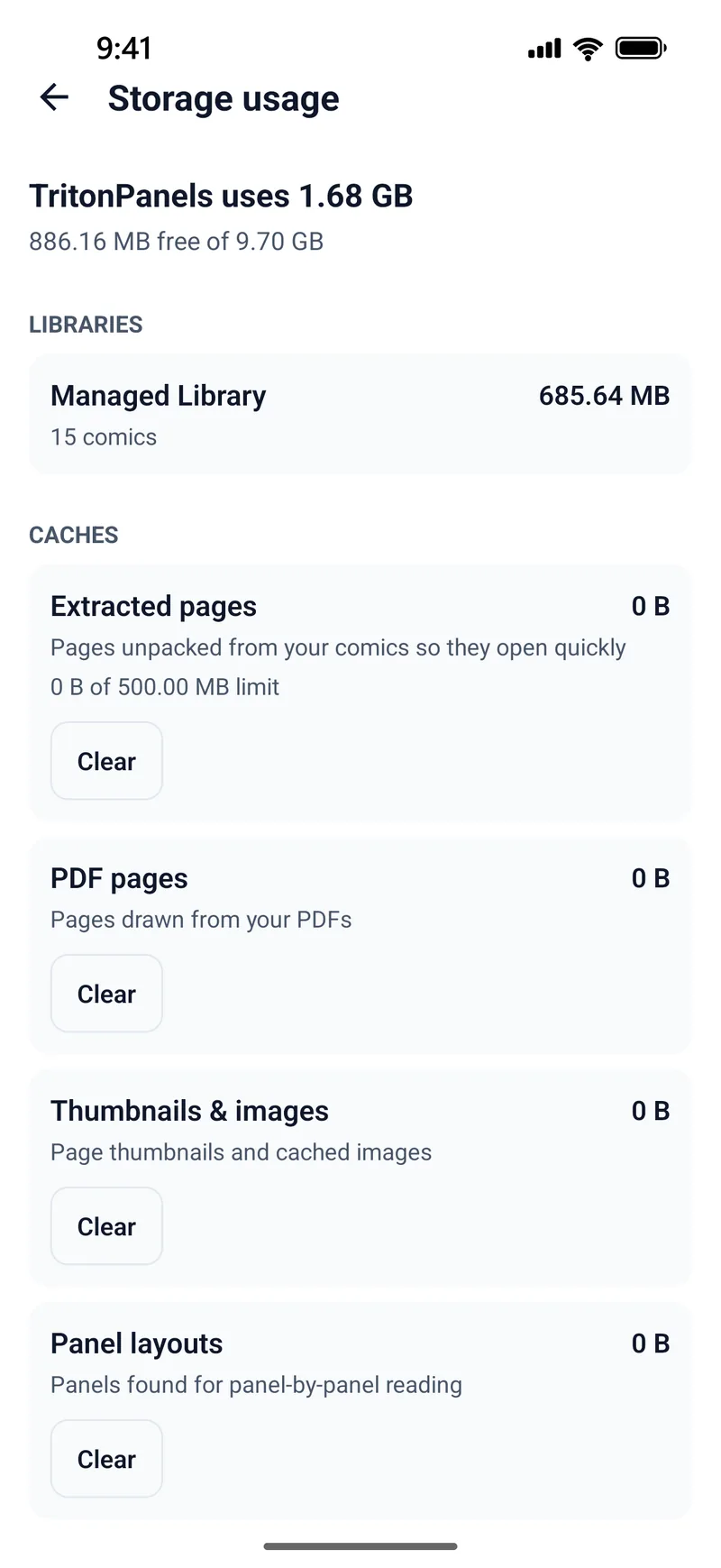
The Storage usage screen shows how much space each library and cache uses, so you can see what a trip’s worth of comics costs. More in reading comics offline.
Keep your share safe
- Never expose SMB to the internet. Don’t forward port 445 on your router. SMB was designed for trusted local networks, and TritonPanels connects only to private addresses anyway.
- Use a VPN to read from outside. A VPN back into your home network, such as WireGuard on your router, lets the phone reach the server’s home address. Tailscale-style 100.x.x.x addresses are not accepted; use the server’s home address through a VPN that routes your home network.
- Give the app a read-only account. TritonPanels never writes to the share, but a read-only account means nothing using that sign-in ever can.
- Avoid guest access. Use guest access under Advanced connects without signing in; use it only on a network you trust.
- Prefer signing and encryption. Turn on SMB signing on the server, and encryption where your devices support it.
Troubleshooting
- The server couldn’t be found: check the name, or use the IP address instead.
- The server refused the connection: check that file sharing is on and the port is right.
- That share doesn’t exist on the server: share names are the shared name, not the folder path on the server’s disk.
- Server security is not supported: the server allows only SMB1 or old sign-in methods. Enable SMB 2 or 3 on it.
- The server can’t encrypt the connection, and encryption is required: on iPhone and iPad, turn off the server’s encryption requirement for this share.
- Network shares are blocked on mobile data: connect to Wi-Fi, or allow mobile data in Settings.
For a folder on the device, an SD card or a USB drive instead, see reading comics from a USB drive, SD card or folder.
Frequently asked questions
Can I read comics from my NAS on an iPhone?
Yes. Attach the NAS share as a live library in TritonPanels with its server address, share name and an account. The share must use SMB 2 or newer, and on iPhone and iPad it must not require SMB encryption.
Does TritonPanels change or delete files on my share?
No. It only reads the share. Nothing on it is copied, moved, renamed or deleted, and your progress, bookmarks and notes are kept in the app.
Can I read from my NAS away from home?
Only through a VPN back into your home network, so the phone can reach the server’s home address. TritonPanels connects only to private addresses, and you should never expose SMB to the internet. For trips, Keep offline is simpler.
Do new comics on the share show up automatically?
Yes. The library is checked again when you open it or return to the app, and Refresh now does it on demand. New comics appear, and missing ones are flagged rather than silently removed.
Read your comics with TritonPanels
A comic and manga reader for iPhone, iPad and Android. CBZ, CBR, CB7, CBT, PDF and image-based EPUB from your device, your cloud, a network share or your own Komga, Kavita or OPDS server — single page, spreads, continuous scroll or Panel by Panel. No ads, no account. 14-day free trial, then a monthly or yearly subscription.
Your own files: TritonPanels reads comics you already have. It does not sell, host or supply comics, and it cannot open copy-protected (DRM) purchases that are locked to another store’s app. Komga, Kavita, Calibre, Dropbox and the other names on this page belong to their owners, who do not endorse TritonPanels.