 TritonPanels
The short answer
TritonPanels has three privacy features, and they do different jobs:
- Incognito reading reads a comic without saving your place, history or reading stats. Turn it on for one comic or for every comic.
- Content lock puts a passcode on the comics and folders you choose, and can hide them from the library altogether.
- Privacy screen hides the app’s contents in the app switcher.
Underneath all three: there is no account, no ads, and no TritonApps server. Your comics and your reading progress stay on your device.
Which one you need depends on who you are hiding from. If you simply do not want a comic in your history or stats, incognito is enough. If someone else uses the same phone or tablet, the content lock keeps chosen comics behind a passcode. If you worry about someone glancing at the app switcher, turn on the privacy screen. They work together, so you can use all three.
Incognito reading
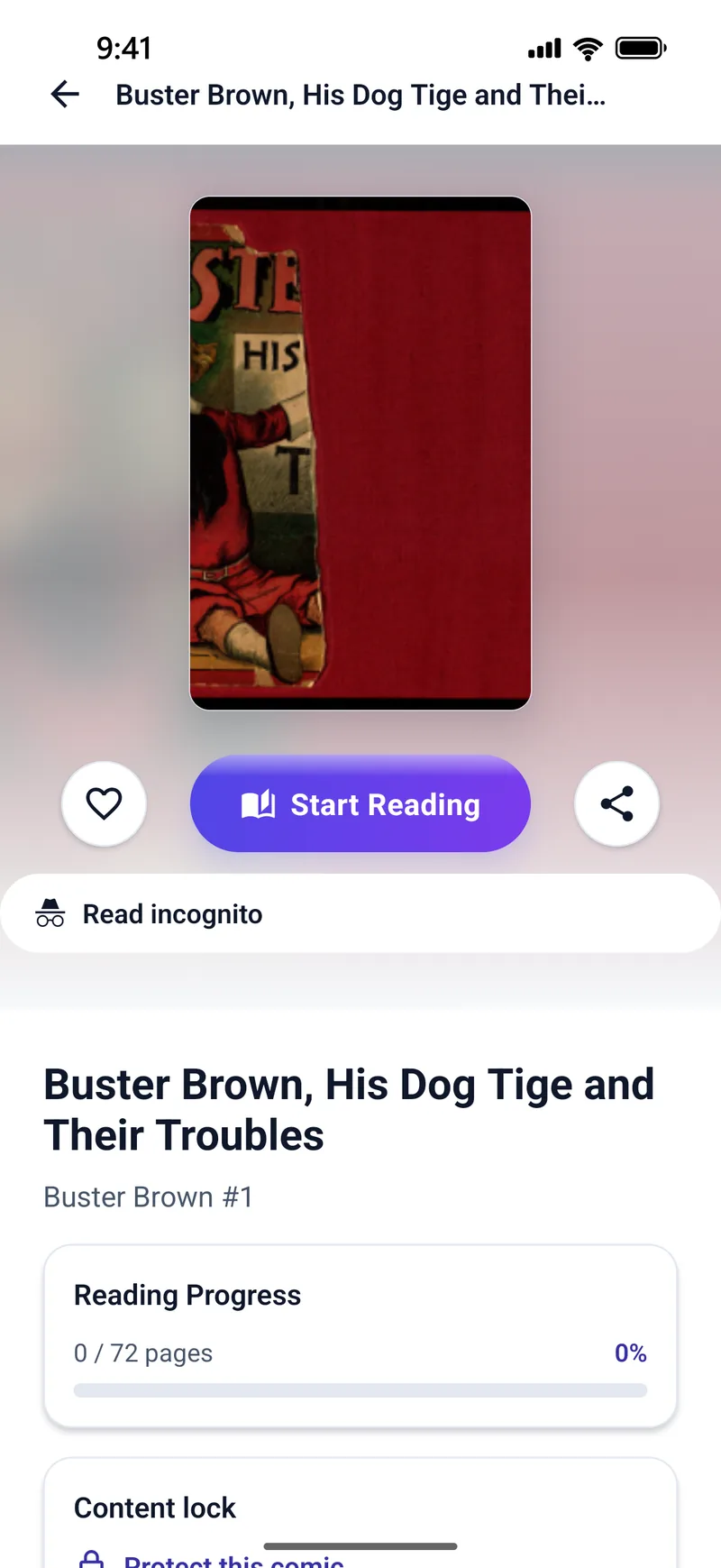
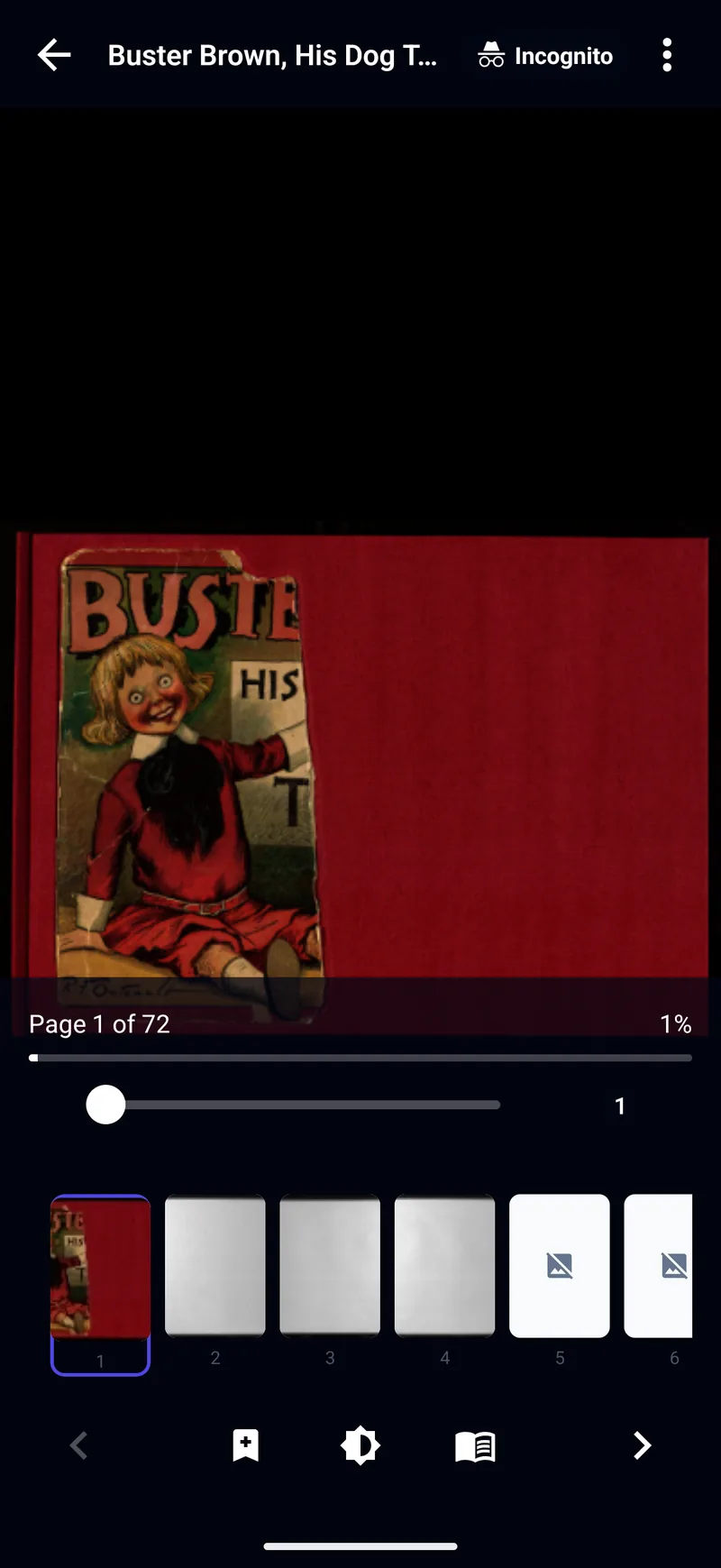
For one comic, open its details and tap Read incognito under the Start Reading button. For everything, turn on Incognito reading in Settings — “Open every comic without saving your place, history or stats”. An Incognito chip in the reader’s top bar tells you it is on.
While you read incognito, the app does not save the page you reached, the time you spent, the pages you read for your stats and goals, or whether you finished the comic. The comic does not move up in Reading Now, a reading list does not move on to the next issue, and the visit’s pages are not kept in the app’s page cache.
Things you choose to save are still kept: bookmarks, notes, and any reader settings you change. The app tells you so the first time, so nothing is lost by surprise.
You can switch mid-comic from the reader menu. Continue incognito keeps what you had read up to that point and stops recording from there. Leave incognito starts recording again from the current page, without counting the pages you read incognito.
Incognito and Komga or Kavita books
If you read straight from your own Komga or Kavita server, TritonPanels keeps your reading progress in step with that server, and the progress goes to your server only. Be aware that a book opened from the server starts a normal visit even when Incognito reading is on in Settings, so the page you reach is saved and synced as usual. To keep a server book out of your history, choose Continue incognito from the reader menu as soon as it opens; from then on nothing is recorded or sent.
Calibre and other OPDS catalogs are read-only: progress from them stays on your device and is never sent back.
Lock comics and folders with a passcode
- Open a comic’s details and, in the Content lock card, tap Protect this comic. For a folder, use Protect folder.
- The first time, set a passcode of 6 to 12 digits and confirm it.
- That passcode now unlocks every protected comic and folder, and one unlock lasts for the session.
Everything inside a protected folder is protected too, including folders inside it. In Settings, under CONTENT LOCK, Lock now locks everything again at once, and Locked items chooses how locked content looks: Show as locked (a placeholder with no cover or title) or Hide completely, where the items and their counts disappear until you unlock. Protected items are left out of search until you unlock, and some stats details are hidden.
After too many incorrect attempts the lock makes you wait before trying again. To pick a new passcode, use Change passcode in the same section; you need the current one to do it.
A forgotten passcode cannot be recovered. Reset content locks in Settings removes the passcode and every protection rule; your comic files are not deleted.
What the content lock does not do
Content lock hides; it does not encrypt. It stops casual access inside TritonPanels — someone browsing your library on your unlocked phone. The comic files and cached pages are not encrypted, so a rooted or jailbroken device, or a computer backup of the phone, can still read them. For anything that genuinely must not be seen, rely on your device’s own screen lock.
It also only covers what is inside TritonPanels. A comic that also sits in your Files app, a cloud folder or a network share is still visible there.
The privacy screen
When you switch apps, your phone shows a snapshot of each app — which can be the page you were just reading. Privacy screen, in the Content lock section of Settings, hides it. Choose Always, When locked content is unlocked (the default), or Off.
On Android, the privacy screen also blocks screenshots and screen recording. On iPhone and iPad it hides the app in the app switcher, but iOS does not let apps block screenshots.
No account, no ads, no TritonApps server
The quieter privacy feature is what the app does not do. TritonPanels has no account to create and shows no ads. It does not run a server of its own, so your comics, your reading history and your stats are kept on your device. Cloud storage, network shares and comic servers are reached directly with the details you enter, and passwords are kept in the iOS Keychain or Android’s encrypted storage. The only data the app sends is anonymous crash reports.
Comics you keep on the device can also be read entirely offline.
Frequently asked questions
Does incognito mode hide that I read a comic?
It means TritonPanels does not record the visit: no saved page, no history, no stats, and no change to Reading Now. It does not hide the comic itself; for that, use the content lock with Hide completely.
Can I lock certain comics with a passcode?
Yes. Choose Protect this comic on a comic’s details page, or Protect folder for a folder, and set a 6 to 12 digit passcode. One passcode covers every protected item.
Are locked comics encrypted?
No. The content lock stops casual access inside the app. The files and cached pages are not encrypted, so a rooted or jailbroken device or a computer backup can still read them.
What happens if I forget my content lock passcode?
It cannot be recovered. Reset content locks in Settings removes the passcode and all protection rules, leaving every comic readable. No comic files are deleted.
Does TritonPanels need an account?
No. There is no account and no TritonApps server. Comics and reading progress stay on your device; only Komga and Kavita progress is shared, and only with your own server.
Read your comics with TritonPanels
A comic and manga reader for iPhone, iPad and Android. CBZ, CBR, CB7, CBT, PDF and image-based EPUB from your device, your cloud, a network share or your own Komga, Kavita or OPDS server — single page, spreads, continuous scroll or Panel by Panel. No ads, no account. 14-day free trial, then a monthly or yearly subscription.
Your own files: TritonPanels reads comics you already have. It does not sell, host or supply comics, and it cannot open copy-protected (DRM) purchases that are locked to another store’s app. Komga, Kavita, Calibre, Dropbox and the other names on this page belong to their owners, who do not endorse TritonPanels.