 TritonPanels
How reading from the cloud works
TritonPanels reads comics from the storage you already use, and there are two ways to bring them in. Importing copies the comics you choose onto your phone or tablet, where they stay until you delete them. A live library keeps a whole cloud folder linked instead: TritonPanels lists what is in it, downloads a comic when you open it, and picks up new and removed files when the folder changes. Either way, your files are never uploaded to TritonApps — there is no TritonApps server holding your collection and no account to create — and the sign-in for each service is stored securely on your device.
| Service | iPhone and iPad | Android |
|---|---|---|
| Dropbox | Import, or keep a folder as a live library (needs the Dropbox app) | Import, or keep a folder as a live library |
| OneDrive | Import, browsing folders in the app | Import, browsing folders in the app |
| Google Drive | Import through the Files app | Import through Google’s own file picker |
| iCloud Drive | Keep a folder as a live library, or import through Files | Not available |
Everything below starts on the Connect Storage screen. To open it, tap the + button in your library. CBZ, CBR, CB7, CBT, PDF and image-based EPUB comics are recognised; other files are ignored.
Import from Dropbox or OneDrive
- Open Connect Storage and tap Dropbox or OneDrive.
- Sign in on the provider’s own page and allow access.
- Browse to the folder that holds your comics and tap the ones you want. Each is imported into the library you are adding to; comics you already have are marked as already in your library.
To stop access later, open Settings, find the cloud storage section and tap Disconnect next to the service, then remove TritonPanels from the list of connected apps in your Dropbox or Microsoft account.
Keep a Dropbox folder as a live library
If you keep adding comics to one Dropbox folder, a live library saves importing them one at a time. The comics stay in Dropbox; TritonPanels lists the folder and its subfolders, downloads a comic only when you open it, and never changes anything in Dropbox.
- In Connect Storage, under Folders and drives, tap Dropbox folder.
- On iPhone and iPad, this uses the Dropbox app’s location in the Files app, so the Dropbox app must be installed and signed in. Files opens at Dropbox: choose the folder.
- On Android, sign in to Dropbox if you haven’t already, open the folder you want and tap Use this folder.
- Check the details and tap Attach folder. TritonPanels lists the folder, and its comics appear as a library of their own.
Comics that have not been opened yet show In Dropbox — downloads when opened. Detaching the library later never deletes anything in Dropbox.
iCloud Drive folders on iPhone and iPad
On iPhone and iPad you can do the same with a folder in iCloud Drive — handy if you drop comics into iCloud Drive from a Mac.
- In Connect Storage, tap iCloud Drive folder.
- Tap Choose iCloud Drive folder. Files opens in iCloud Drive; pick the folder. Only that folder and what is inside it becomes available to TritonPanels.
- Tap Attach as live library.
A comic that is stored only in iCloud shows In iCloud — download required, and opening it downloads it first. If iCloud holds two versions of a file, TritonPanels won’t pick one for you: tap Resolve in Files and choose there. You can attach up to eight iCloud Drive folders.
Google Drive on iPhone and iPad
On iOS, Google Drive comics are chosen through Apple’s Files app rather than an in-app folder browser, and no Google sign-in happens inside TritonPanels.
- Install the Google Drive app from the App Store and sign in to it, if you haven’t already.
- In TritonPanels, open Connect Storage, tap Google Drive, then Open Files.
- Tap Browse and choose Google Drive. If it isn’t listed, tap Edit on the Browse screen and switch it on.
- Pick the comics you want to add.
Why Google Drive is different on iPhone: Google only lets an app browse your Drive folders itself after a paid annual security review, which would push up the price of TritonPanels. Going through the Files app gives you the same comics without it.
Google Drive on Android
- In TritonPanels, open Connect Storage, tap Google Drive and sign in with your Google account.
- Tap Choose files from Google Drive. Google’s own file picker opens.
- Pick the comics you want. Use Choose more files to add more later.
TritonPanels receives only the files you pick and cannot see the rest of your Drive. That is also why Google Drive is import-only on both platforms: there is no Google Drive live library and no automatic download of new Drive files.
Reading offline: Keep offline and Downloads
Imported comics are on your device, so they read anywhere — on a flight, a commute or a ferry with no signal. Comics in a live library download when you open them, so before a trip use Keep offline on a comic, a folder or a whole library. Anything kept offline is never removed to free up space.
All transfers go through one Downloads screen, with pause and resume and a space check before anything starts. Avoid Cellular Data in Settings holds downloads until you are on Wi-Fi, so a big library never eats your mobile data allowance. If you add comics to Dropbox or OneDrive regularly, Auto Download fetches new ones it finds at the top level of the connected account.
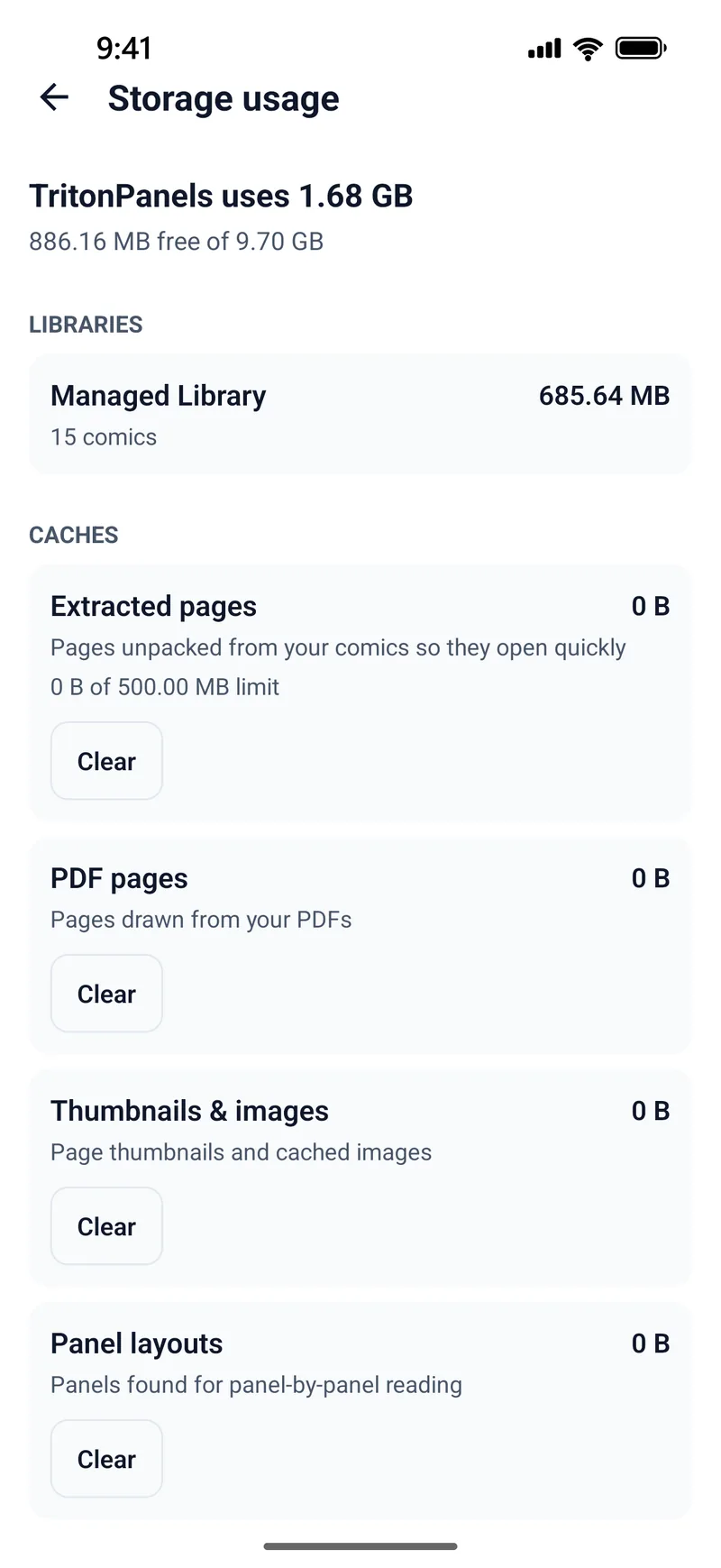
When space runs low, the Storage usage screen shows what each library takes and lets you clear caches without touching your comics. More in reading comics offline.
If new comics don’t appear
- Pull down on the library to refresh it. In a live library, tap Refresh now.
- If Avoid Cellular Data is on, downloads show Waiting for Wi-Fi until you connect to Wi-Fi.
- Auto Download looks only at the top level of each connected Dropbox or OneDrive, not inside subfolders. Browse to a subfolder to import from it, or keep that folder as a Dropbox live library.
- If a Dropbox library on iPhone says Sign in to the Dropbox app to read this library, open the Dropbox app and sign in there.
- If a session has expired, the app asks you to reconnect the service.
- If a single file won’t open, check its format — see opening CBZ and CBR files, including the RAR5 catch.
Frequently asked questions
Does TritonPanels upload my comics to its own servers?
No. Your comics stay in your own storage account and on your device. TritonApps has no server that holds your files, there is no account to create, and cloud sign-ins are stored securely on the device.
Can I read comics from Google Drive on an iPhone?
Yes. In TritonPanels, tap Google Drive on the Connect Storage screen, choose Open Files, and pick your comics from Google Drive inside Apple’s Files app. The Google Drive app needs to be installed and switched on in Files.
What is the difference between importing and a live library?
Importing copies the comics you pick onto your device. A live library links a whole Dropbox or iCloud Drive folder: new and removed files show up when the folder changes, and each comic downloads when you open it, or ahead of time if you choose Keep offline.
Do I need an internet connection to read?
Only to fetch comics. Imported comics, and live-library comics that are downloaded or kept offline, read without a connection.
Which cloud services does TritonPanels support?
Google Drive, Dropbox and OneDrive on iPhone, iPad and Android, plus iCloud Drive folders on iPhone and iPad. Comics can also be imported from anywhere the system file picker reaches.
Read your comics with TritonPanels
A comic and manga reader for iPhone, iPad and Android. CBZ, CBR, CB7, CBT, PDF and image-based EPUB from your device, your cloud, a network share or your own Komga, Kavita or OPDS server — single page, spreads, continuous scroll or Panel by Panel. No ads, no account. 14-day free trial, then a monthly or yearly subscription.
Your own files: TritonPanels reads comics you already have. It does not sell, host or supply comics, and it cannot open copy-protected (DRM) purchases that are locked to another store’s app. Komga, Kavita, Calibre, Dropbox and the other names on this page belong to their owners, who do not endorse TritonPanels.