 TritonPanels
The short answer
TritonPanels connects straight to your Komga server from your iPhone, iPad or Android device. You add the server once with its address and an API key, then browse your libraries and series, search, and read any book in the full reader. Reading progress is kept in step with Komga both ways: what you read on the phone is sent to the server, and progress recorded on the server shows up in the app. Books can be downloaded for offline reading, and progress made offline is sent when the server is reachable again.
You need Komga 1.19 or later. TritonPanels itself needs a subscription after a 14-day free trial; there is no free tier. Nothing passes through TritonApps: the app talks to your server and nowhere else.
What Komga is
Komga is a free, open-source comic and manga server that you run yourself, on a PC, a NAS or a small home server. You point it at folders of CBZ, CBR, PDF or EPUB files and it organises them into libraries, series and books, reads their metadata, and serves them through a web interface and an API. Because it runs on your own hardware, your collection never has to sit in anyone else’s cloud.
The web interface is fine on a laptop. On a phone you want a native reader: proper page turning, two-page spreads, right-to-left manga, panel-by-panel reading, offline copies. That is the gap TritonPanels fills.
Which address to enter
Komga listens on port 25600 unless you changed it. What you type depends on where you are reading.
At home, on the same Wi-Fi
Use the server’s address on your home network, with http:// typed in full and the port at the end — for example http://192.168.1.20:25600. If you leave out http://, the app assumes https://. Because plain HTTP is not encrypted, TritonPanels shows This connection isn’t encrypted and asks you to confirm, and it also asks you to confirm the non-standard port. Only continue for a server on your own network that you trust.
Away from home
There are two safe routes. The first is a VPN back into your home network — for example WireGuard on your router — so the phone can use the same home address as if you were on the sofa. The second is a reverse proxy that gives Komga a public domain name with HTTPS and a certificate from a public authority such as Let’s Encrypt. Never open Komga to the internet over plain HTTP.
| Address | Accepted? |
|---|---|
| Plain HTTP to a home-network address (192.168.x.x, 10.x.x.x, 172.16–31.x.x) | Yes, after you confirm |
| HTTPS to a public domain name with a trusted certificate | Yes |
| Plain HTTP to a public address | No |
| HTTPS to a name that points at a home-network address | No |
Tailscale addresses (100.x.x.x) and *.ts.net names | No |
| A self-signed certificate | No |
If an address is refused, the app says This address can’t be used. The table above is why.
Connect TritonPanels to Komga, step by step
- In Komga’s web interface, open Account settings → API keys and create a key. TritonPanels recommends this over your password, and you can revoke the key there at any time.
- In TritonPanels, tap the + button in your library to open Connect Storage.
- Under CATALOGS, tap Komga.
- Give the connection a Name and enter the Server address.
- Under Sign in with, choose API key and paste the key — or choose User name and password; your Komga user name is usually an email address.
- Tap Test and save. If the address uses plain HTTP or a non-standard port, read the warning and tap Continue.
- On iPhone and iPad, allow Local Network access when iOS asks. Without it the app cannot reach a server at home.
Your key or password is kept only in the iOS Keychain or Android’s encrypted storage and is sent only to your server. The connection then appears under Catalogs on the Libraries screen.
Browsing, searching and reading
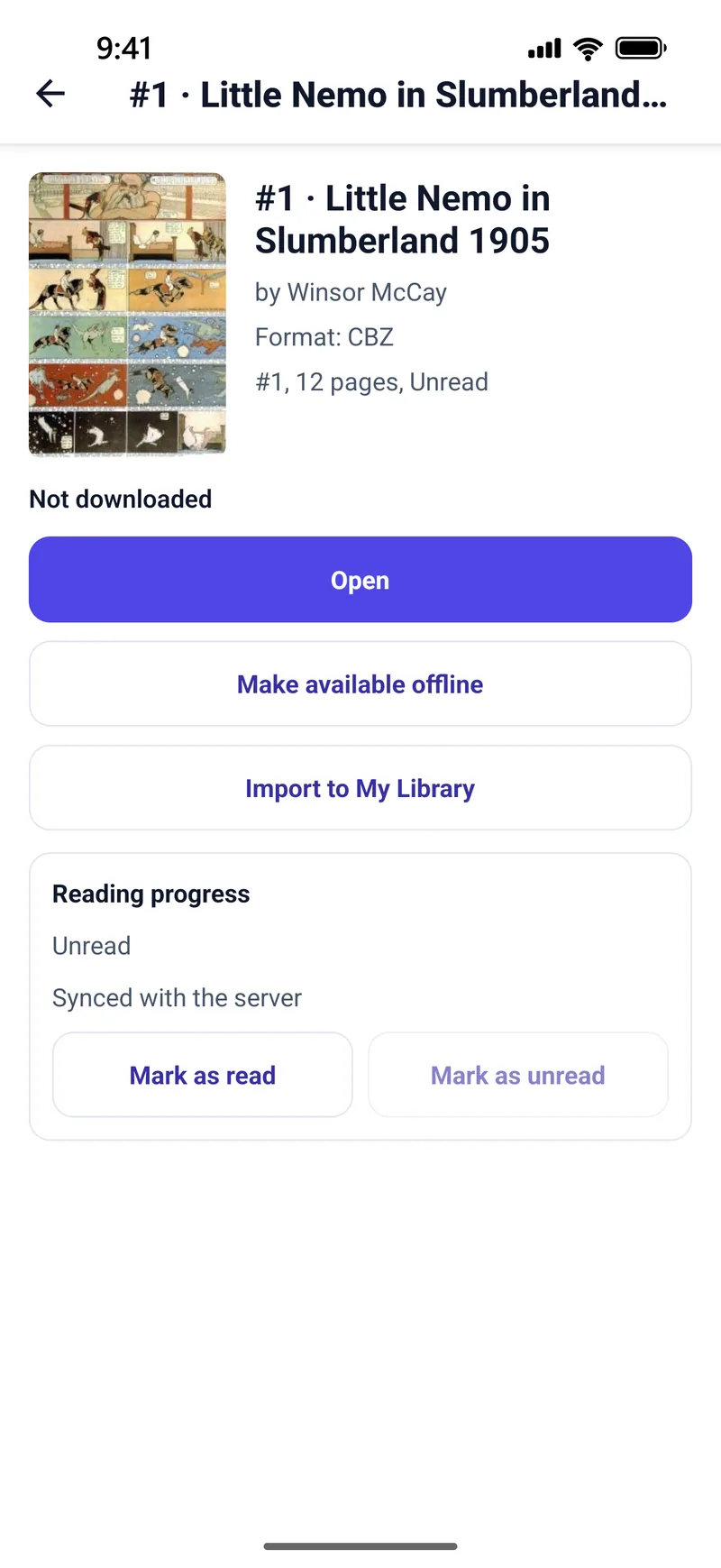
Open the connection and you move through Komga’s own structure: libraries, then series, then books, with a breadcrumb trail at the top to step back. Each book shows its number, page count, read state, format and whether it is downloaded. Search uses Komga’s own search across the server. Tap a book and choose Open; it streams into the full reader, with Single Page, Double Page, Continuous Scroll and Panel by Panel views and Right to Left (Manga) direction, exactly as for comics on the device.
Reading progress, both ways
While you read, TritonPanels sends your page to Komga every few seconds and again when you close the book. When you open a book, it shows the progress the server holds, including pages read in Komga’s web reader. Mark as read and Mark as unread are sent to the server too.
The Reading progress panel on each book tells you where things stand: Synced with the server, Waiting to sync, or Will sync when the server is reachable if you read offline. If it says Sign in again to sync, the key or password stopped working and needs entering again; your downloads and progress are kept.
Downloading for offline reading
Tap Make available offline on any book and it downloads in the background through the Downloads screen, with pause, resume and a space check. Turn on Avoid Cellular Data in Settings to keep large downloads to Wi-Fi. Downloaded books read with the server switched off or out of reach, and the series list keeps showing what you last browsed.
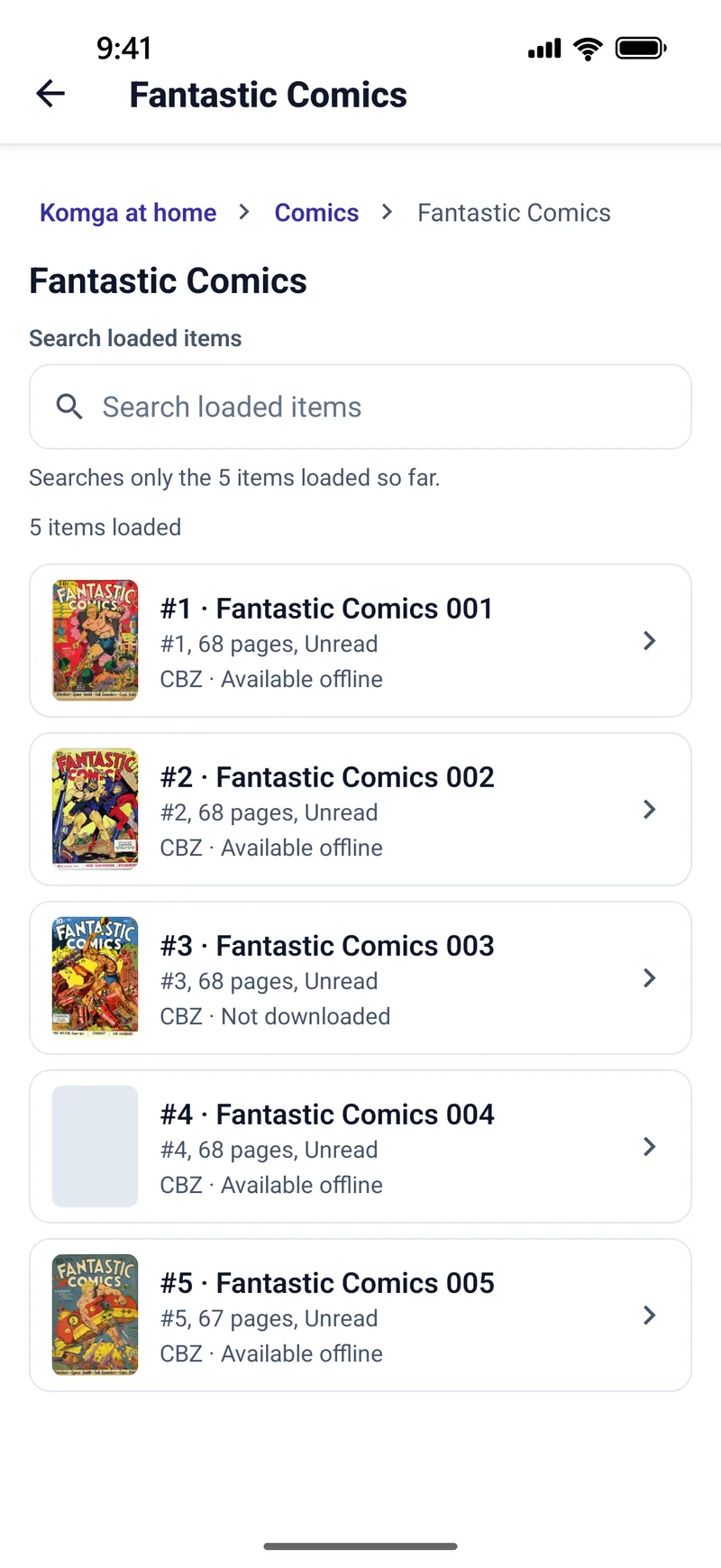
If you want a copy that does not depend on the server at all, Import to My Library copies the book into your TritonPanels library as an ordinary comic. See reading comics offline for planning a trip.
If it won’t connect
- Nothing happens at home on iPhone. Check Settings → Privacy & Security → Local Network in iOS and make sure TritonPanels is switched on.
- The server couldn’t be reached. Check the port. Komga’s default is 25600, but a Docker setup may map it to another port. Open the same address in the phone’s browser to confirm Komga answers.
- This address can’t be used. You have typed
https://for a home address, plain HTTP for a public one, or a Tailscale address. Use the table above. - Certificate errors. The certificate must be one your device trusts, and there is no way to skip that check. Use a certificate from a public authority.
- This server doesn’t look like a supported Komga version (1.19 or later). Update Komga.
- The sign-in is refused. The API key may have been revoked; create a new one in Komga.
Frequently asked questions
Is there a Komga app for iPhone?
Komga itself runs on your computer or NAS and is used through a web browser. TritonPanels connects to it from iPhone, iPad and Android, so you can browse, read and download your Komga library in a native reader. It needs Komga 1.19 or later.
Does reading progress sync with Komga?
Yes, both ways. Pages you read in TritonPanels are sent to the server, and progress recorded on the server, including in Komga’s web reader, shows up in the app. Progress made offline is sent once the server is reachable.
Can I read my Komga library away from home?
Yes, through a VPN back into your home network, or a reverse proxy that gives Komga a public HTTPS address with a trusted certificate. Tailscale addresses and plain HTTP to a public address are not accepted in this version.
Should I use an API key or my password?
An API key. Create one in Komga under Account settings → API keys. It can be revoked at any time without changing your password, and TritonPanels stores it only in the device’s secure storage.
Read your comics with TritonPanels
A comic and manga reader for iPhone, iPad and Android. CBZ, CBR, CB7, CBT, PDF and image-based EPUB from your device, your cloud, a network share or your own Komga, Kavita or OPDS server — single page, spreads, continuous scroll or Panel by Panel. No ads, no account. 14-day free trial, then a monthly or yearly subscription.
Your own files: TritonPanels reads comics you already have. It does not sell, host or supply comics, and it cannot open copy-protected (DRM) purchases that are locked to another store’s app. Komga, Kavita, Calibre, Dropbox and the other names on this page belong to their owners, who do not endorse TritonPanels.