 TritonPanels
The short version
- Name files consistently: one folder per series, with the year, and files like
Fantastic Comics #003 (1940).cbz— the#matters. - Add metadata with ComicInfo.xml where you can, so series, number and creators travel with the file whatever it is called.
- Use libraries for big, separate worlds (comics and manga, say, or yours and the children’s).
- Use folders in the app for how you want to browse, reading lists for reading order across series, and tags and favourites for everything else.
- Lean on search and filters rather than ever-deeper folders.
Start with the files: a naming convention
Good filenames are the foundation, because they work in every app and every file manager. A widely used pattern is a folder per series, named with the year the series started, and files that give the series name, a # and a three-digit issue number, then the cover year in brackets:
Fantastic Comics (1939)/Fantastic Comics #001 (1939).cbzFantastic Comics (1939)/Fantastic Comics #003 (1940).cbzLittle Nemo in Slumberland (1905)/Little Nemo in Slumberland #001 (1905).cbz
Each part earns its place. The # is what tells a reader where the series name ends and the issue number starts: when a comic has no embedded metadata, TritonPanels reads the issue number from the filename only when it is written as #003 or Issue 003, and takes the year from the brackets. Name a file Fantastic Comics 003 (1940).cbz instead and the number is read as part of the series name, so every issue becomes a series of its own. The year separates a relaunch from the original run of the same name. The zero padding (001 rather than 1) makes issue 10 sort after issue 9 in apps that sort alphabetically.
Stick to one format, too: converting everything to CBZ is the tidy option, because it is a plain ZIP that every reader understands. If your scans are loose folders of images, make a CBZ file from each one.
Let metadata do the sorting
Filenames only go so far, and they break the moment someone renames a file. ComicInfo.xml is the robust option: a small file inside a CBZ that records the series, issue number, title, writer, artist, publisher, year and more, so the details travel with the comic whatever it is called. It originated with ComicRack and is now widely read. TritonPanels reads it when you import a comic and falls back to the filename only for what it does not provide; that metadata is what feeds the Series sort, search by author or publisher, and the details page. The ComicInfo.xml guide shows how to add it. (Reading direction is not taken from the file: set Right to Left (Manga) in the reader for manga.)
Libraries: separate worlds
A library is the top level. Most people need one; a few need several. Good reasons for a second library are a genuinely separate collection (manga and Western comics, or a child’s comics on a shared tablet) or a separate source, such as a folder on an SD card, which TritonPanels shows as its own library. Create one in Settings → Libraries with Create Library.
You can switch between libraries at the top of the Library screen or view all of them at once. A comic can be moved or copied to another library: Move takes its progress, bookmarks, notes, tags and reading lists with it, while Copy adds a separate, unread copy and shares the file rather than duplicating it. A library you no longer read can be archived, which keeps everything but takes it out of the list.
Folders inside folders
My folders is where the browsing structure lives. Folders can hold comics and other folders, so you can build Golden Age → Fox Features → Fantastic Comics or To read → Holiday, however you think about the collection. Folders exist only in TritonPanels: creating, moving or renaming one never moves or renames a file on disk. A comic can sit in several folders at once.
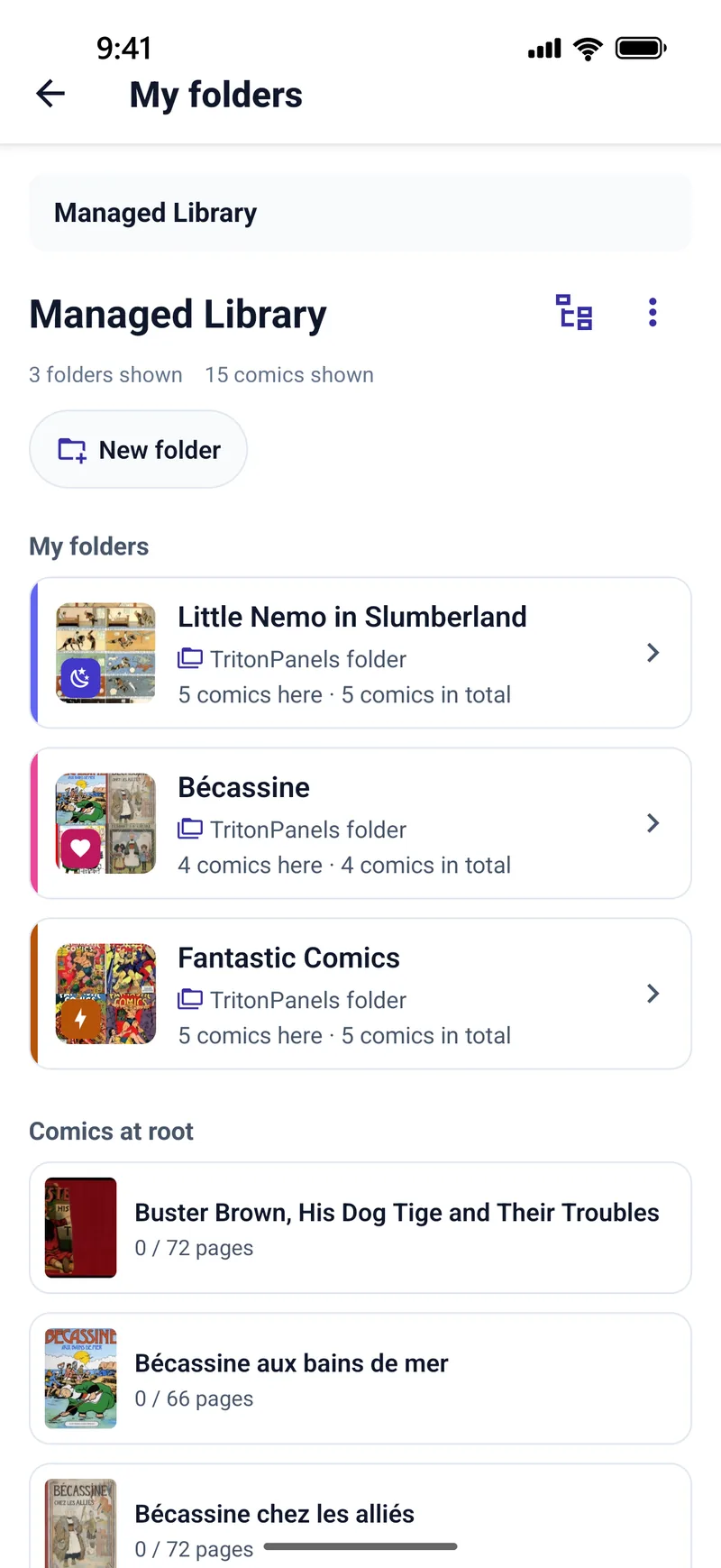
Each folder can have its own look. Open a folder, tap Appearance, and choose a Colour, a Symbol (a searchable set: shields, rockets, swords, a thought bubble and more) and a Cover from one of its comics. A row of folders with distinct colours is far quicker to scan than a row of identical icons. Turn on Include comics in subfolders when you want to see everything under a folder at once.
Reading lists for reading order
Folders answer “where does this belong?”. Reading lists answer “what do I read next?”. They are the right tool for a crossover event that runs through several series, a recommended order for a long saga, or a stack of comics for a holiday. Tap Reading Lists in the Library, then Create Reading List, and add comics from each comic’s details page. Continue Reading picks up at the right issue, and the reader can carry straight on to the next comic in the list when you finish one.
Tags and favourites
Tags cover whatever folders and lists do not: a genre, an artist you collect, “re-read”, “lend to Sam”. Add them on a comic’s details page under Tags; search finds comics by tag. Favourites are the simplest marker of all: Add to favourites on the details page, then use the Favorites filter. You can also pin a folder or reading list you visit constantly as a favourite location, so it sits as a shortcut at the top of the Library.
Finding things again
A well-organised collection is one where you find any comic in seconds, and that is mostly search and filters, not folders.
- Filters: All, Favorites, In Progress, Completed and Unread.
- Sort: Last Read, Title, Date Added or Series, in a grid or a list. The default is set in Settings.
- Search one library, or Search All Libraries at once, by title, series, author, publisher or tag.
- Reading Now lists everything in progress with the page you are on, so you can carry on with a tap.
- Recently imported groups comics added in the last 30 days by day, which makes it easy to check a big import and file it.
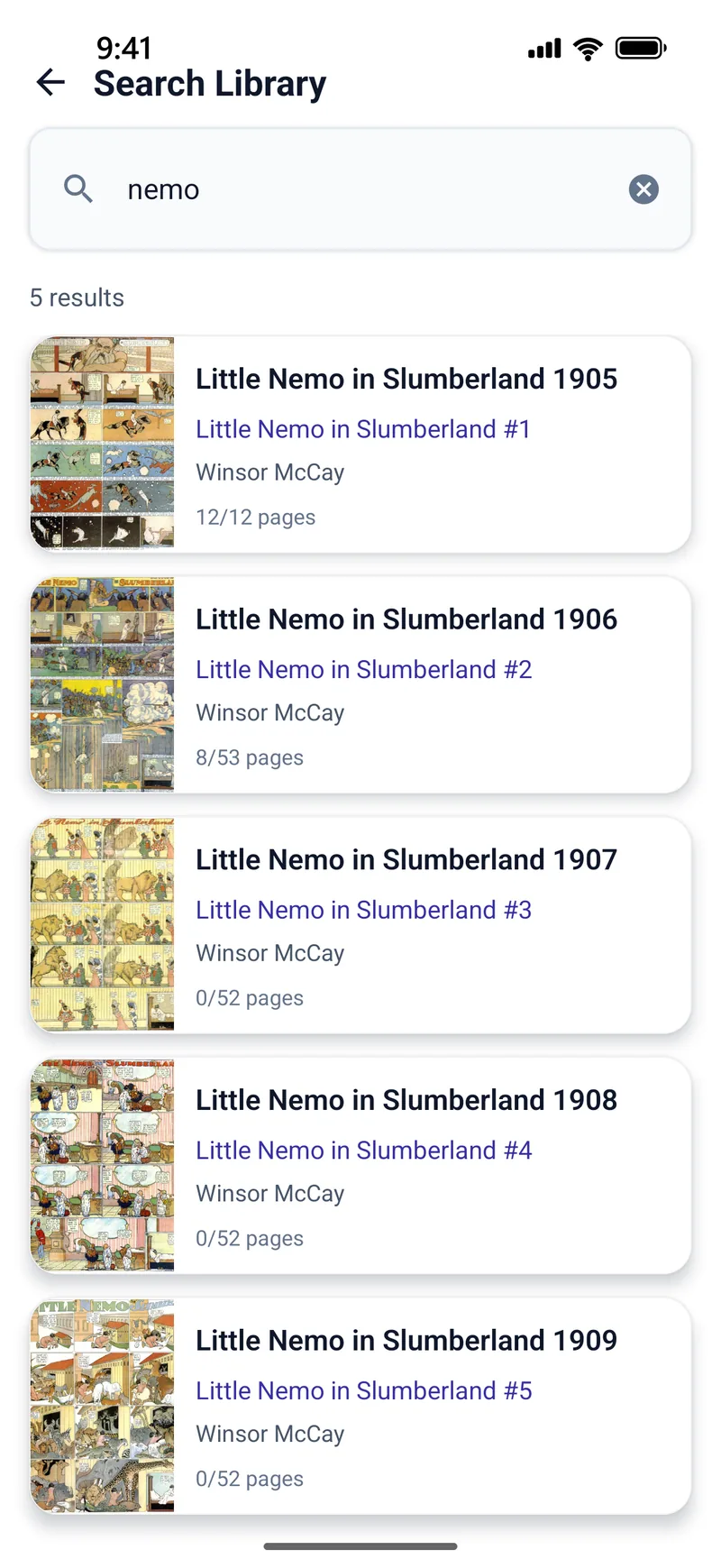
Keep the structure shallow and let the metadata do the work. If you find yourself five folders deep looking for one issue, a tag or a search would have got you there faster.
Frequently asked questions
What is the best way to name comic files?
Use one folder per series with its start year, and name files with the series, a # and a zero-padded issue number, then the year in brackets, such as Fantastic Comics #003 (1940).cbz. Without the #, TritonPanels reads the number as part of the series name. Embedding ComicInfo.xml is more robust still.
Do folders in TritonPanels move my files?
No. Folders exist only inside TritonPanels. Creating, moving or renaming one never moves or renames a file, and a comic can be in several folders at once.
Should I use folders or reading lists?
Use folders for where a comic belongs when you browse, and reading lists for the order you want to read things in, such as a crossover event that runs across several series.
Can I search every library at once?
Yes. Search All Libraries finds comics in every library by title, series, author, publisher or tag, and you can narrow the results to one library afterwards.
Read your comics with TritonPanels
A comic and manga reader for iPhone, iPad and Android. CBZ, CBR, CB7, CBT, PDF and image-based EPUB from your device, your cloud, a network share or your own Komga, Kavita or OPDS server — single page, spreads, continuous scroll or Panel by Panel. No ads, no account. 14-day free trial, then a monthly or yearly subscription.
Your own files: TritonPanels reads comics you already have. It does not sell, host or supply comics, and it cannot open copy-protected (DRM) purchases that are locked to another store’s app. Komga, Kavita, Calibre, Dropbox and the other names on this page belong to their owners, who do not endorse TritonPanels.