 TritonPanels
What panel by panel reading is
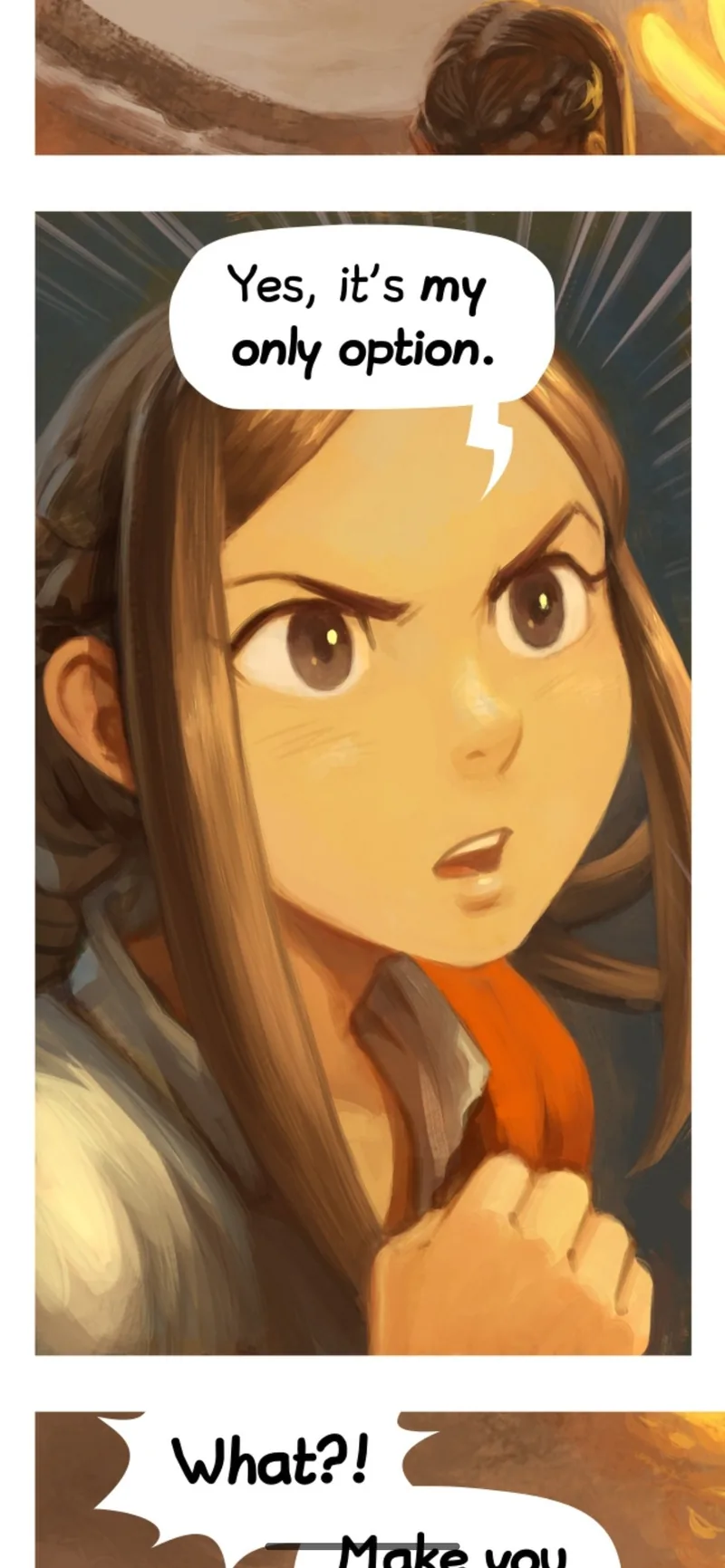
Panel by panel reading — often called guided view — shows one panel at a time, enlarged to fill the screen. Tap to move to the next panel; when the page is finished, the next tap takes you to the first panel of the next page. You read at a comfortable size without touching the zoom once, which is exactly what a phone screen needs.
Digital comic shops have offered guided view for years, but only on comics they sell and have prepared by hand. The files you own yourself — CBZ, CBR, CB7, CBT, PDF or image-based EPUB — carry no panel information at all. A reader that wants to do this on your own collection has to look at each page and work the panels out for itself. That is what TritonPanels’ Panel by Panel mode does.
How TritonPanels finds the panels
Panel detection happens entirely on your device. No page is uploaded anywhere, and it works offline. It runs in two layers:
- Classical computer vision handles most pages. It looks for the gutters — the strips of paper between panels — and the borders around them, then splits the page along them row by row. Because rows are split before columns, the panels come out in reading order.
- A small machine-learning model, bundled inside the app, is the fallback. It is used only on pages the first layer cannot make sense of, such as full-bleed art where panels butt against each other with no paper between them. It runs on the phone like everything else.
Some pages are meant to be seen whole. A cover or a splash page with no gutters is shown as a whole page rather than chopped into pieces, and the next tap moves on. Once a page’s panels have been found they are remembered, so they are not worked out twice; the panel layouts sit in a cache you can clear from the Storage usage screen.
How to turn it on
- Open any comic and tap the page to show the controls.
- Open the reader menu (the three dots at the top right) and choose Reading Mode.
- Pick Panel by Panel, alongside Single Page, Double Page and Continuous Scroll.
The quicker route is a preset. Choose Reader Preset in the reader menu and pick Guided Panels: Panel by Panel, with the surrounding panels hidden. To read every comic this way, set Default Reading Mode to Panel by Panel in Settings.
The first time you use it, a one-screen guide shows the controls. Bring it back at any time with How Controls Work in the reader menu.
The controls
- Tap the right or left edge to move forward or back one panel. Swiping sideways does the same.
- Tap the band at the top, or swipe down anywhere, to show the controls; swipe up to hide them.
- Pinch closed to see the whole page, and spread open over a panel to zoom back in to it.
- Double tap to magnify the current panel further. You stay on the same panel.
- Drag with two fingers to peek past a panel’s edge — useful when a speech bubble spills over into the next panel.
The page scrubber still works here, but it jumps between pages rather than panels: a page you jump to opens at its first panel.
Hide Surrounding Panels
By default, the edges of neighbouring panels stay visible around the one you are reading, so you keep a sense of the page. If you would rather see nothing but the current panel, open Reading Mode and turn on Hide Surrounding Panels. Everything outside the current panel is blacked out, which also stops you glancing ahead at the next panel’s punchline. Peeking with two fingers lifts it for a moment.
Manga: right-to-left panel order
Manga is read right to left, and so are its panels. With Panel by Panel on, set the panel direction beneath it to Right to Left (Manga) and each row is stepped through from the right. The edge taps flip too: the left edge moves forward and the right edge moves back. Western comics use the default, Left to Right. How to read manga on iPhone, iPad and Android covers the rest of the manga setup.
Keyboards, game controllers and remotes
Every way of turning a page also steps through panels. On an iPad or Android tablet with a keyboard, the left and right arrow keys move one panel at a time, following the reading direction. A game controller’s D-pad and shoulder buttons work the same way, and a media remote’s previous and next buttons step back and forward. It makes Panel by Panel comfortable on a tablet propped on a stand.
When detection struggles
Automatic detection is very good on conventional layouts and less sure on unusual ones: panels that overlap, irregular shapes, characters breaking out of their frames, or a scan with heavy show-through from the other side of the paper. When a page goes wrong, pinch closed to see it whole and carry on, or switch that comic to Single Page — your place is kept. It is never all or nothing.
Good to know: Panel by Panel frames each panel itself, so your Page Fit choice is set aside while it is on and comes back in Single and Double Page. Zoom Lock and Translate pages are not available in this mode.
Other ways to read
Panel by Panel is one of four reading modes. Single Page suits most phone reading, Double Page shows two-page spreads on a tablet or in landscape, and Continuous Scroll suits long vertical comics. See reading comics on an iPad or Android tablet, or every TritonPanels feature. For the story behind the detector, the TritonApps blog has reading comics one panel at a time.
Frequently asked questions
Is panel by panel the same as guided view?
It is the same idea: one panel at a time, full screen, in reading order. Guided view is the name some digital comic shops use for it on comics they sell. TritonPanels does it on your own files by finding the panels itself.
Does panel detection send my comics anywhere?
No. Both layers of detection, the computer vision and the small fallback model, are built into the app and run on your phone or tablet. Nothing is uploaded and no connection is needed.
Which files does Panel by Panel work with?
Every format TritonPanels opens: CBZ, CBR, CB7, CBT, PDF and image-based EPUB. See how to open CBZ and CBR files if you are starting from scratch.
Can I read manga panel by panel?
Yes. Set the panel direction to Right to Left (Manga) so each row is read from the right, and the edge taps swap sides to match.
What happens on a splash page or a cover?
A page with no gutters to split along is shown whole, and the next tap moves on to the following page. You can always pinch closed to see any page in full.
Read your comics with TritonPanels
A comic and manga reader for iPhone, iPad and Android. CBZ, CBR, CB7, CBT, PDF and image-based EPUB from your device, your cloud, a network share or your own Komga, Kavita or OPDS server — single page, spreads, continuous scroll or Panel by Panel. No ads, no account. 14-day free trial, then a monthly or yearly subscription.
Your own files: TritonPanels reads comics you already have. It does not sell, host or supply comics, and it cannot open copy-protected (DRM) purchases that are locked to another store’s app. Komga, Kavita, Calibre, Dropbox and the other names on this page belong to their owners, who do not endorse TritonPanels.