 TritonPanels
The short answer
Put your manga in a comic file format such as CBZ, open it in a comic reader that supports right-to-left reading, and switch the reading direction to right to left. In TritonPanels that is one tap: choose the Manga reader preset, or set Reading Direction to Right to Left (Manga). Swipes, edge taps, arrow keys, two-page spreads and panel order all flip to match.
The rest of this guide covers the details that make manga comfortable rather than merely readable: spreads that pair up on the correct pages, panel order, long vertical comics, and pages in a language you do not read.
Manga files: what you need
Manga volumes are usually distributed the same way as Western comics: a folder of page images packed into an archive. TritonPanels opens CBZ (a ZIP), CBR (RAR4), CB7, CBT and compressed TAR files, PDF, and image-based, fixed-layout EPUB. Pages can be JPEG, PNG, WebP, AVIF and most other common image formats.
Two limits are worth knowing. Anything copy-protected (DRM) cannot be opened by any third-party reader, and that includes most manga bought inside a store’s own app. And RAR5 archives and text-only, reflowable EPUBs are not supported. If you have a folder of loose images, making a CBZ file takes a minute; if you have a RAR5 CBR, convert it to CBZ.
Turn on right-to-left reading
- Open the manga and tap the page to show the controls.
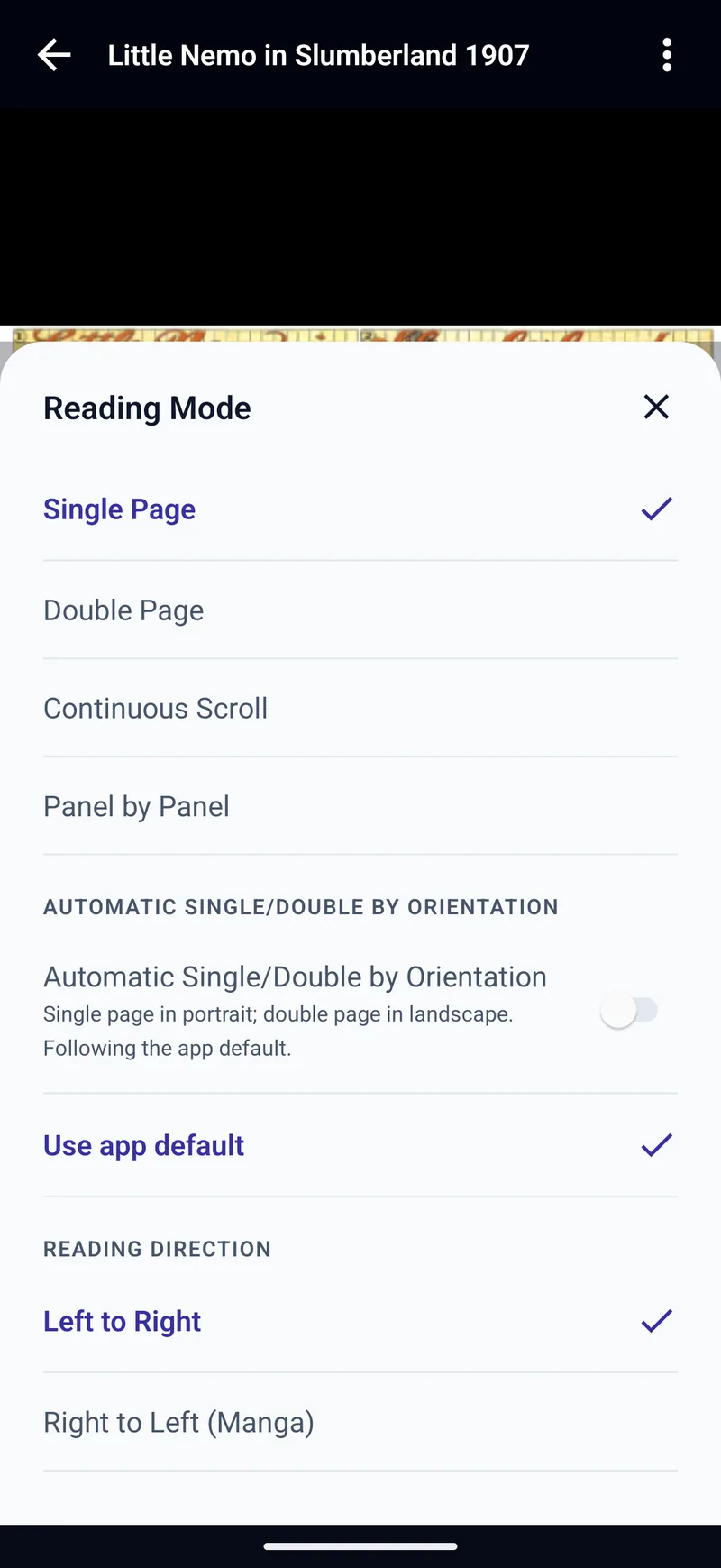
- Open the reader menu (the three dots at the top right) and choose Reading Mode.
- Under Reading Direction, choose Right to Left (Manga).
The setting is saved for that comic. TritonPanels does not guess the direction from the file, so if most of what you read is manga, change Default Reading Direction in Settings instead and every comic opens right to left unless you say otherwise.
What changes: swiping right now moves forward and swiping left goes back. With the default Reader Gestures, the tap zones swap sides too, so the left edge is “next” — the Mirror for right-to-left comics switch in Settings > Reader Gestures controls that, if you would rather your taps stayed put. The left and right arrow keys on a keyboard follow the reading direction as well. Page numbers do not change: page 1 is still page 1.
The Manga preset
Reader presets bundle several settings into one tap. The built-in Manga preset is “Single page, right to left for the whole book”. Choose Reader Preset in the reader menu and pick it. If you like something different — Double Page on a tablet, a particular page fit, a black background — set the comic up the way you want and save it as your own preset from Settings > Reader Presets, so the next volume takes one tap too.
Two-page spreads in the right order
On a tablet, or a phone turned sideways, Double Page shows facing pages side by side. In right-to-left reading the first page of each pair sits on the right and the second on the left, just as in the printed volume.
TritonPanels pairs pages automatically: the cover is shown on its own, any page that is already a wide spread (a double-page image scanned as one file) is shown on its own, and the rest pair up from there. That works for most volumes. When a volume is out by one — usually because a scanner dropped or added a page — spreads end up split across two screens. Fix it from Page Grouping in the reader menu:
- Show this page alone breaks a pair, which shifts every pair after it by one page.
- Pair this page with the next page joins two pages by hand.
- Group from this page on re-pairs the rest of the book from the current page.
- Reset all groups goes back to the automatic pairing.
Your grouping is saved with the comic. Double Page is not available for PDFs, which always show one page at a time.
Panel by panel for manga
On a phone held upright, a manga page is small, and the lettering smaller still. Panel by Panel zooms to one panel at a time. Set the panel direction beneath it to Right to Left (Manga) so each row is read from the right. Manga layouts can be more adventurous than Western grids, so expect the occasional page to be shown whole; pinch closed to see any page in full. When a bubble straddles two panels, drag with two fingers to peek past the edge, and turn on Hide Surrounding Panels if you would rather not see the next panel early. Panel by panel comic reading explains how it works.
Webtoons and vertical comics
Webtoons and other long-strip comics are drawn to be scrolled from top to bottom, so reading direction hardly matters. Choose Continuous Scroll in Reading Mode: pages run one after another in a single column, fitted to the width of the screen, and your place is saved as you scroll. A strip split into many tall images reads as one unbroken scroll.
Reading untranslated manga
If you are learning Japanese, Korean or Chinese, or reading something that was never translated, TritonPanels can read the text on the page. Select text in the reader menu recognises the lettering in speech bubbles so you can copy it, share it or translate it, and Translate pages (Experimental) draws a machine translation over the bubbles as you read. Both run on the device. Vertical lettering and hand-drawn sound effects are harder to recognise than printed horizontal text, so treat the result as a study aid rather than a finished translation. How to translate a comic or manga page has the details.
Frequently asked questions
How do I read manga right to left on my phone?
Open the manga in a comic reader that supports it and switch the reading direction. In TritonPanels, choose the Manga reader preset, or open Reading Mode and pick Right to Left (Manga). Swipes, taps, spreads and panel order all follow.
Why are my manga spreads split across two screens?
The pairing is off by one page, usually because the scan has an extra or missing page near the start. Open Page Grouping in the reader menu and choose Show this page alone on the page before the first broken spread, and everything after it shifts into line.
Can I read manga I bought in a store app?
Usually not. Store-bought manga is normally copy-protected (DRM) and only opens in that store’s own app. TritonPanels reads DRM-free files: CBZ, CBR, CB7, CBT, PDF and image-based EPUB.
How should I read webtoons on a phone?
Use a continuous vertical scroll. In TritonPanels, choose Continuous Scroll in Reading Mode; pages are fitted to the screen width and run together as one long strip.
Read your comics with TritonPanels
A comic and manga reader for iPhone, iPad and Android. CBZ, CBR, CB7, CBT, PDF and image-based EPUB from your device, your cloud, a network share or your own Komga, Kavita or OPDS server — single page, spreads, continuous scroll or Panel by Panel. No ads, no account. 14-day free trial, then a monthly or yearly subscription.
Your own files: TritonPanels reads comics you already have. It does not sell, host or supply comics, and it cannot open copy-protected (DRM) purchases that are locked to another store’s app. Komga, Kavita, Calibre, Dropbox and the other names on this page belong to their owners, who do not endorse TritonPanels.