 TritonPanels
Turn it on
Open the comic, tap the page, open the reader menu and choose Reading Mode, then Panel by Panel. The Guided panels preset does the same job in one tap. Set the panel direction to Right to Left (Manga) when the book is manga. Pages, spreads and panels all follow that direction.
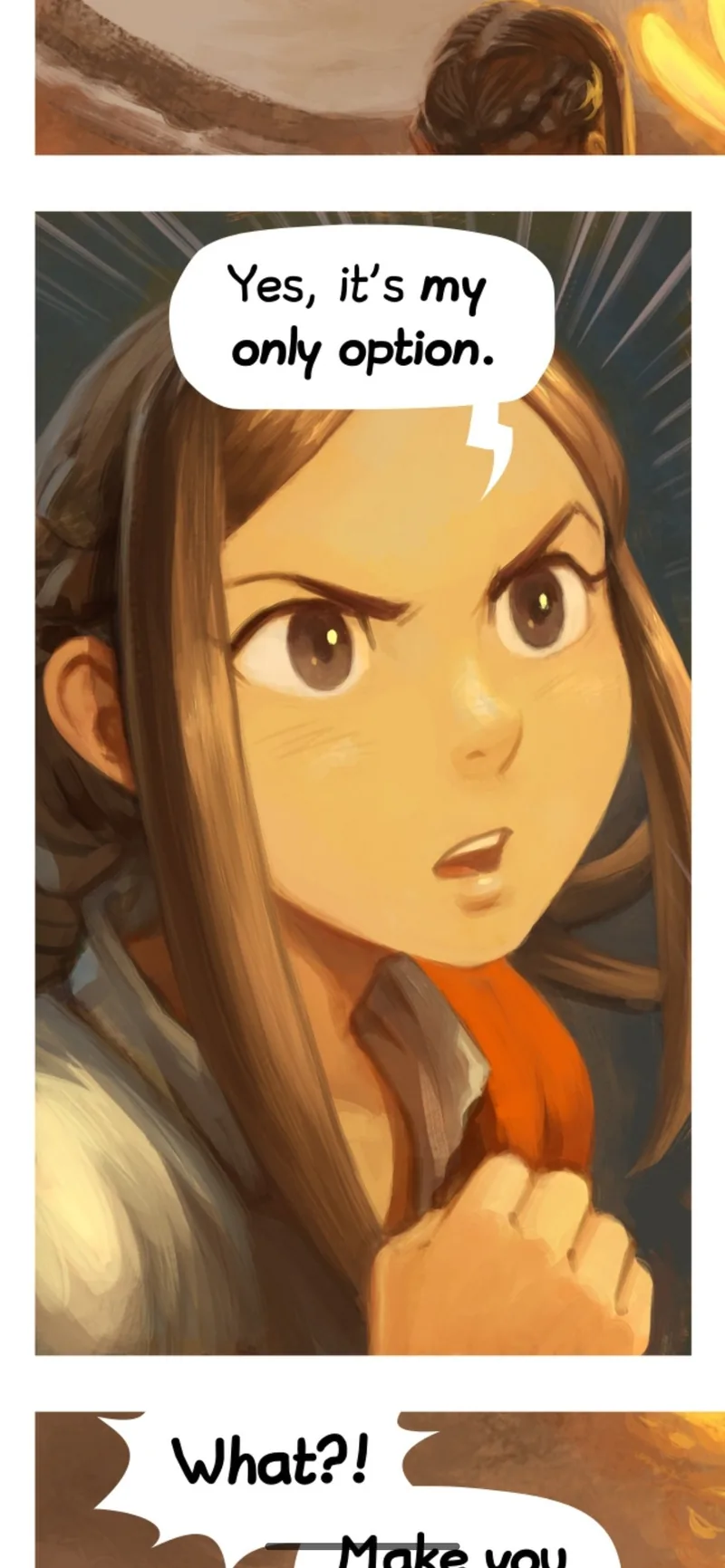
How the detector works, including the on-device model it falls back to, is in Panel by Panel comic reading. This page is the short version for a phone.
What it does on a small screen
You move forward panel by panel instead of dragging around a page. Splash pages with no gutters are shown whole. Layouts the detector cannot split are shown whole too. Pinch closed to see the full page, and use two fingers if a balloon crosses the edge. Hide Surrounding Panels covers the rest of the page when you would rather not see the next panel early.
It runs on the phone. Classical computer vision handles most pages, and a small bundled model is the fallback. No page is uploaded for detection.
Which files
The usual comic files work: CBZ, CBR if it is RAR4, CB7, CBT, PDF and image-based DRM-free EPUB. A RAR5 CBR will not open at all, panel mode or not. Why a CBR will not open is the fix. Copy-protected store downloads will not open in any third-party reader.
Manga
Right-to-left panel order is a setting, not a guess from the filename. The manga guide covers spreads and the Manga preset. Panel by Panel uses the same direction.
Other ways to read a page
Single page, double page and continuous scroll are still there. Continuous scroll is the one to use for a tall webtoon strip: vertical scroll for webtoons. Panel by Panel is the one for a grid of panels on a phone. Tablets often want double page instead; reading on a tablet covers that.
Frequently asked questions
How do I read a CBZ on an iPhone without zooming?
Open Reading Mode and choose Panel by Panel, or the Guided panels preset. The app finds panels on the device and shows one at a time.
Does panel detection upload the page?
No. Detection runs on the device, with classic computer vision and a small bundled model as the fallback.
Does it work for manga?
Yes, if you set the panel direction to Right to Left (Manga). The app does not infer that from the file name.
Why is a page shown whole?
Splash pages with no gutters, and pages the detector cannot split, are shown whole. Pinch closed any time to see the full page.
Sources
Checked 15 October 2026. Claims about other apps come from the pages linked below. TritonPanels claims come from this site. A store price is the price that listing showed, and it can differ by country.
Read your comics with TritonPanels
A comic and manga reader for iPhone, iPad and Android. CBZ, CBR, CB7, CBT, PDF and image-based EPUB from your device, your cloud, a network share or your own Komga, Kavita or OPDS server — single page, spreads, continuous scroll or Panel by Panel. No ads, no account. 14-day free trial, then a monthly or yearly subscription.
Your own files: TritonPanels reads comics you already have. It does not sell, host or supply comics, and it cannot open copy-protected (DRM) purchases that are locked to another store’s app. Komga, Kavita, Calibre, Dropbox and the other names on this page belong to their owners, who do not endorse TritonPanels.