 TritonPanels
The short answer
Run Komga 1.19 or later or Kavita 0.9.1.4 or later on a computer or NAS. Point it at the folders that already hold your CBZ, CBR, PDF or EPUB files. Create an API key (Komga) or Auth Key (Kavita). In TritonPanels, add that server under Connect Storage. Reading progress writes back to the server. Books can be downloaded for offline reading.
TritonPanels needs a subscription after a 14-day trial. Nothing passes through TritonApps: the app talks to your server and nowhere else.
Install the server
Komga and Kavita are free, open-source servers you host yourself. Their own documentation covers the install, including Docker. TritonPanels does not ship or host the server. Typical defaults: Komga listens on port 25600, Kavita on port 5000. A Docker mapping can change the public port; use the port you can open in a browser on the same network.
Add a library in the server’s web interface and point it at the folder of comics. Let it finish scanning before you connect the phone, so series and books are already there.
Create a key
On Komga, open Account settings → API keys and create a key. User name and password also work; the key is easier to revoke. On Kavita, open User Settings → Auth Keys and create a key. Kavita does not use your password in TritonPanels.
The key is stored only in the iOS Keychain or Android’s encrypted storage and is sent only to your server.
Connect the phone
- In TritonPanels, tap + and open Connect Storage.
- Under CATALOGS, tap Komga or Kavita.
- Give the connection a name and enter the server address.
- Paste the API key or Auth Key. For Komga you can also choose user name and password.
- Tap Test and save. Confirm the unencrypted-connection or non-standard-port warning if you are on your home network.
- On iPhone and iPad, allow Local Network access when iOS asks.
At home, type http:// and the LAN address in full, for example http://192.168.1.20:25600. If you leave the scheme out, the app assumes https://.
Away from home
Three routes work. A VPN back into the home network lets the phone use the same LAN address. A reverse proxy can give the server a public HTTPS name with a certificate the phone trusts. Tailscale works over HTTPS on a *.ts.net name: install Tailscale on the phone, join the same tailnet, turn on HTTPS, and run Tailscale Serve on the server. Plain HTTP to a 100.x address is refused. Self-signed certificates are refused.
The longer address tables are in the Komga app guide and the Kavita app guide.
Read, sync and go offline
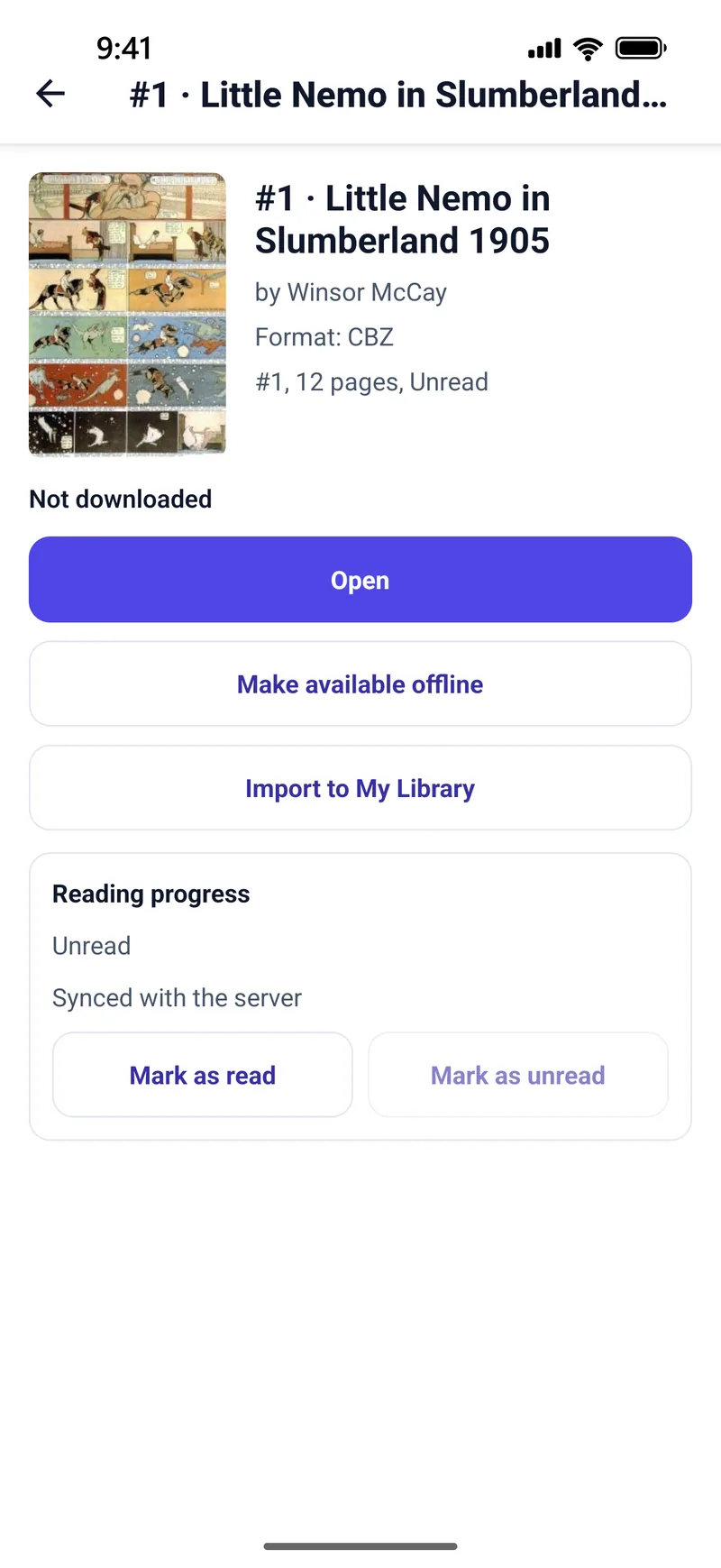
Open the connection and move through the server’s own structure. Komga shows libraries, series and books. Kavita shows series, volumes and chapters. Search uses the server’s search. The reader is the same one used for files on the phone: single page, double page, continuous scroll, Panel by Panel, and Right to Left (Manga).
Progress syncs both ways. Pages you read in TritonPanels go to the server; pages you read in the server’s web reader show up in the app. Make available offline downloads a book or chapter through the Downloads screen. Progress made offline is sent when the server is reachable again.
Kavita also offers an OPDS feed. Use the Kavita card rather than that feed: only the Kavita card syncs progress. A general OPDS catalog, including Calibre, stays read-only.
Frequently asked questions
How do I read Komga or Kavita on my phone?
Install Komga 1.19 or later or Kavita 0.9.1.4 or later, add a library, create an API key or Auth Key, and add the server in TritonPanels under Connect Storage. Progress syncs both ways.
Do I need a TritonPanels account for Komga?
No. There is no TritonPanels account. The app talks only to your server. A subscription is required after a 14-day trial.
Can I use Tailscale with Komga or Kavita?
Yes, over HTTPS on a *.ts.net MagicDNS name via Tailscale Serve. Plain HTTP to a 100.x address is refused. Self-signed certificates are refused.
Should I add Kavita as OPDS instead?
No. Use the Kavita card. OPDS, including Calibre, keeps progress on the phone only. The Kavita card writes it back to the server.
Which port do I type?
Komga defaults to 25600 and Kavita to 5000. If you run Docker, use the port you can open in a browser on the same network.
Read your comics with TritonPanels
A comic and manga reader for iPhone, iPad and Android. CBZ, CBR, CB7, CBT, PDF and image-based EPUB from your device, your cloud, a network share or your own Komga, Kavita or OPDS server — single page, spreads, continuous scroll or Panel by Panel. No ads, no account. 14-day free trial, then a monthly or yearly subscription.
Your own files: TritonPanels reads comics you already have. It does not sell, host or supply comics, and it cannot open copy-protected (DRM) purchases that are locked to another store’s app. Komga, Kavita, Calibre, Dropbox and the other names on this page belong to their owners, who do not endorse TritonPanels.